
Published
Ever wondered what actually goes into making a website accessible? Over the next few blog posts, I’m going to find out. I’m going to go on a journey of taking a website I’ve quickly designed and coded up with no explicit accessible aims and go through the process of updating it to make it accessible and inclusive to everyone.
The website for the experiment is actually the marketing website for A11y Pulse. I can hear the screams already, surely that website is already accessible? Nope, not explicitly, I just hand coded the normal way I write a website.
Step One: Automated Accessibility Testing
Before diving into the tricky stuff, it makes sense to tackle the easy wins first. Automated testing tools, like A11y Pulse, can usually catch about 30–50% of accessibility issues.
The rest require manual testing because they rely on context and human judgment — but we’ll get to that in the next post.
For now, let’s run the A11y Pulse marketing site through the A11y Pulse app.
I’ll start by adding the site.
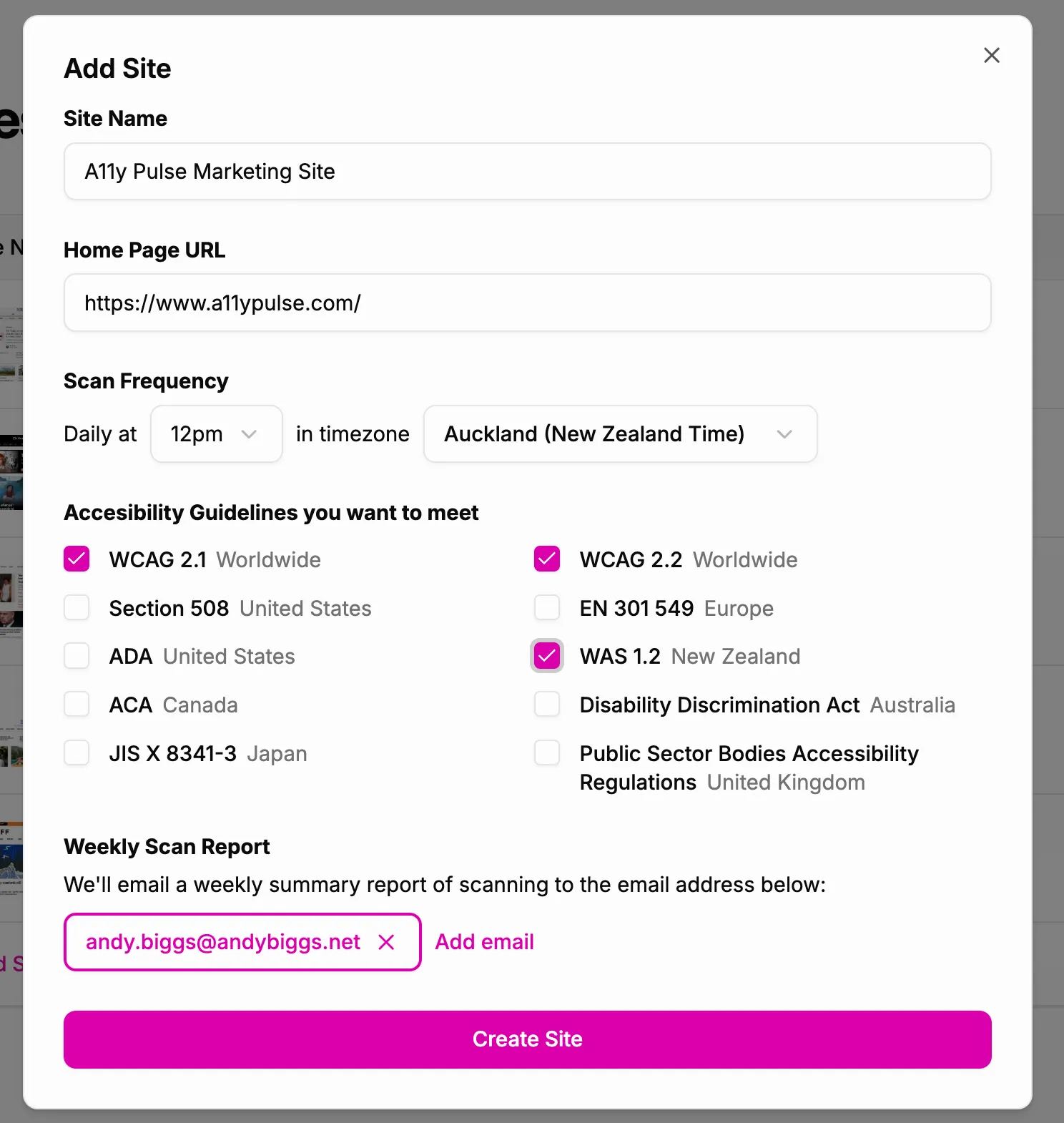
Picking the Right Guideline
Woah, what are all these guidelines?
Around the world, governments are taking accessibility seriously and publishing their own standards to make the web more inclusive for all.
Since I’m in New Zealand, I selected WAS 1.2, our local accessibility guideline.
If your country isn’t listed, don’t worry — WCAG 2.1 and WCAG 2.2 are global standards maintained by the W3C, and most country-specific guidelines are based on them anyway.
First Results
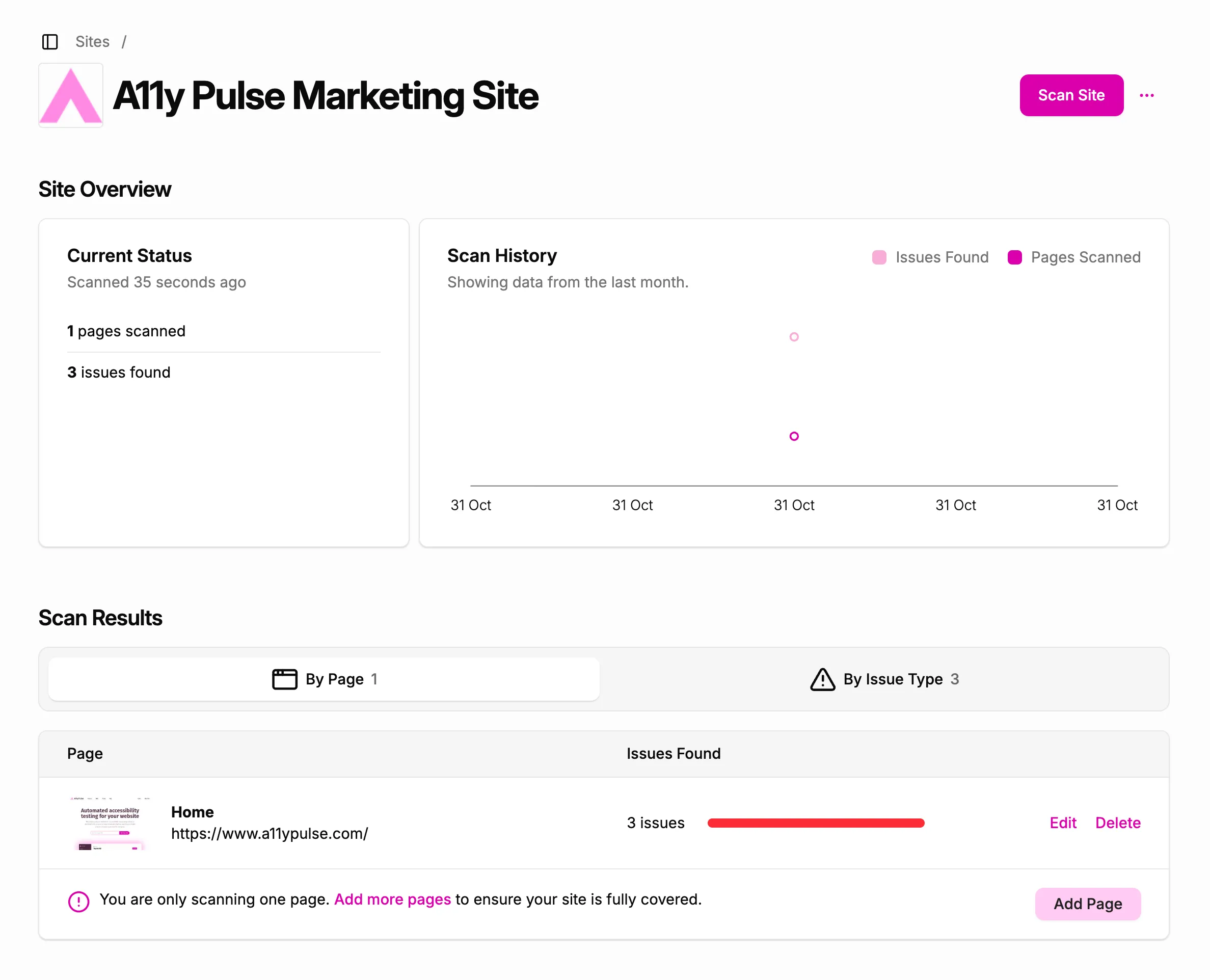
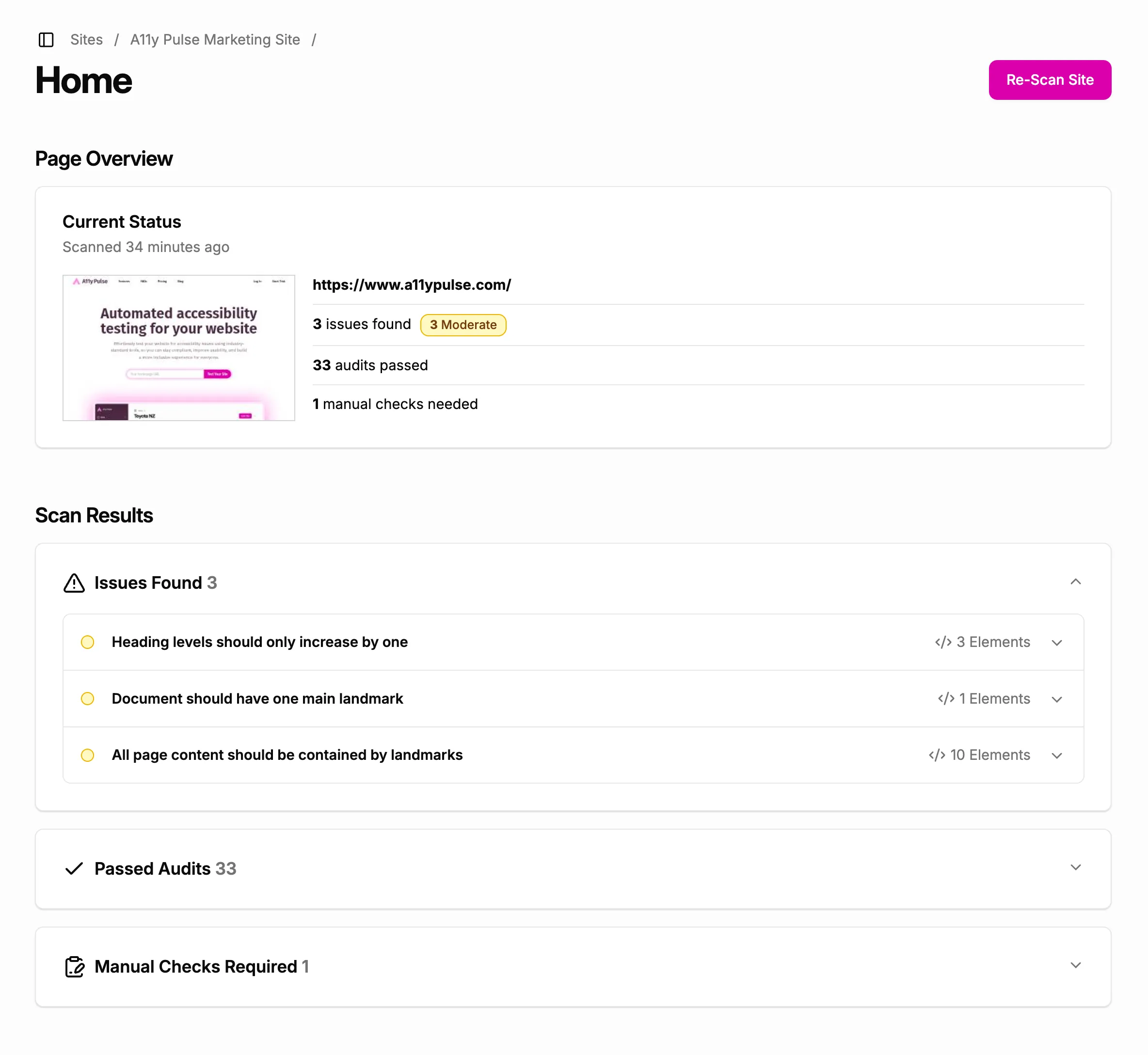
Not bad! Only 3 issues were found on the homepage.
But that’s just one page. A marketing site usually has a few more, so let’s add them.
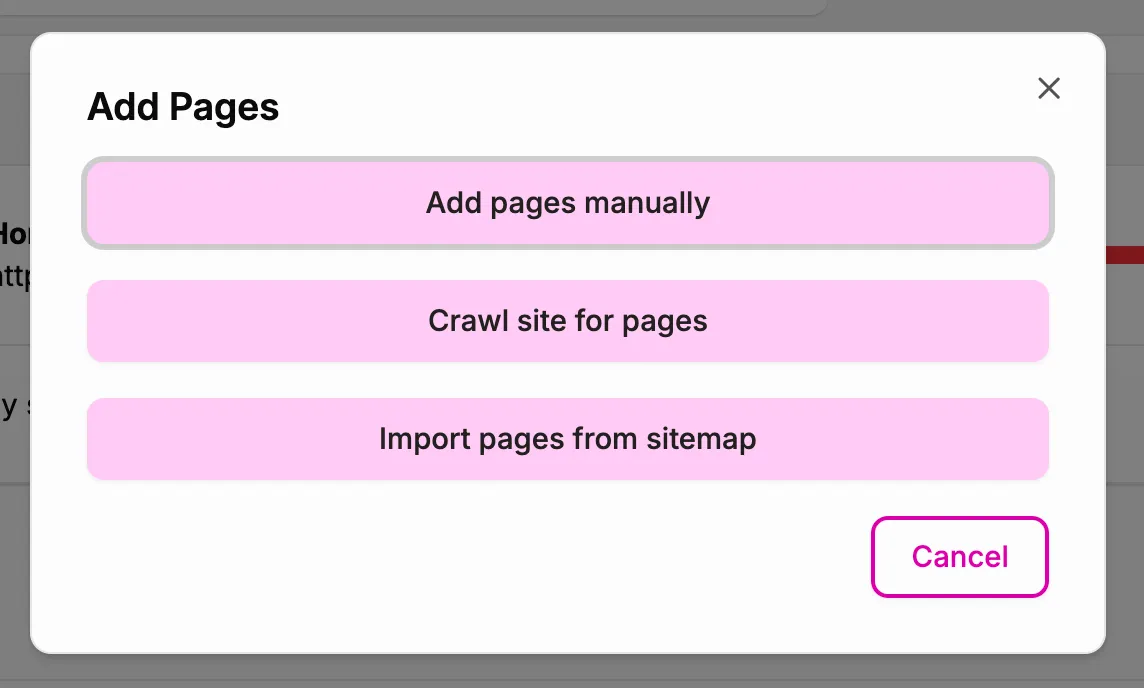
Clicking “Add Pages > Crawl site for pages” magically pulls in all the other pages through a quick site crawl — much easier than entering them by hand.
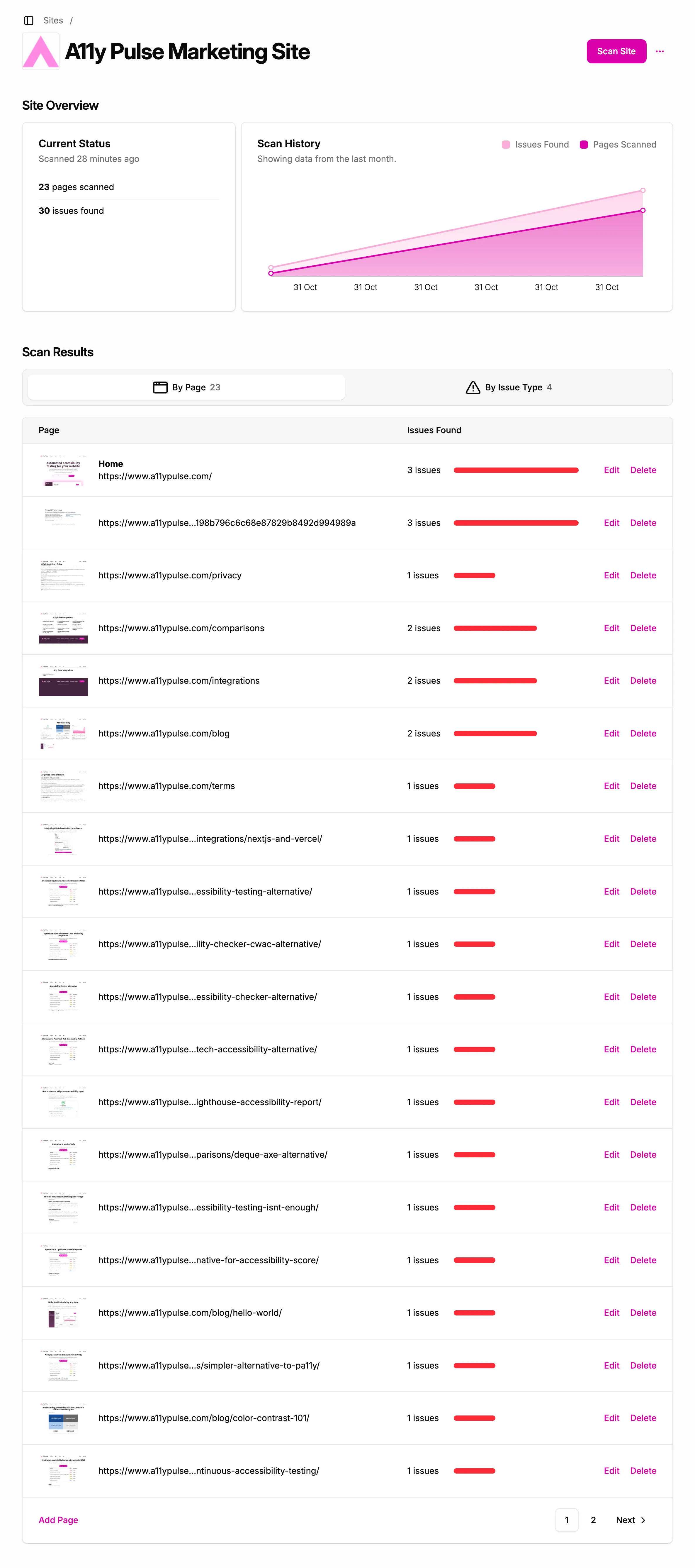
Now things look more realistic: 30 issues across the full site.
Fortunately, the By Issue Type table shows only 4 unique issue types, meaning many pages share the same problems. Fixing one page might fix many. That’s always encouraging.
Let’s dive in, starting with the homepage. It appears I have three moderate issues on the homepage.
Issue 1: “Heading levels should only increase by one”
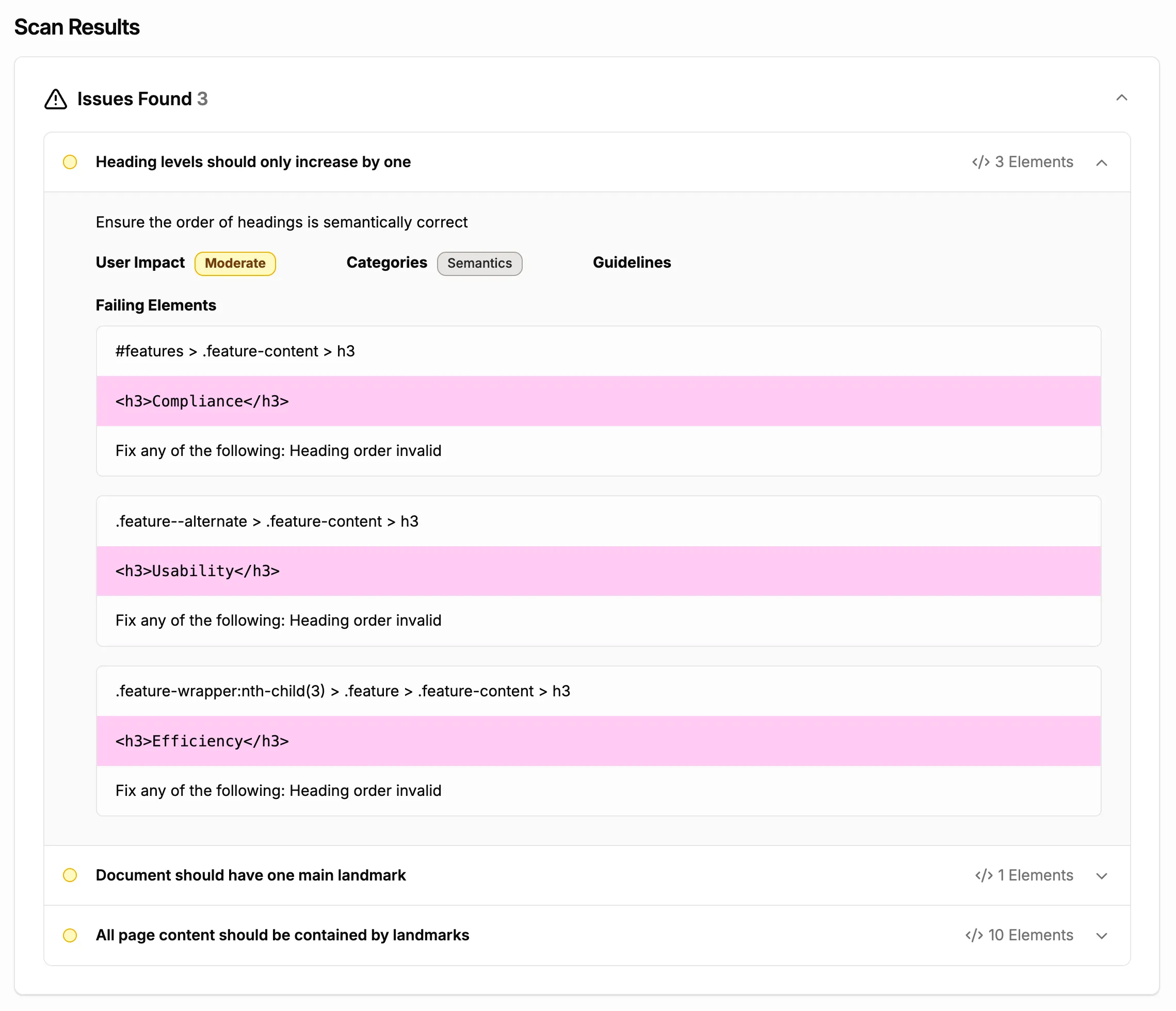
When I look at the help info on how to fix the issue, it states the following:
Headings should follow a logical order.
An<h1>should be followed by an<h2>, not an<h3>, and so on.
Don’t use heading tags on text that isn’t actually a heading.
And yes… my page starts with an <h1>, then jumps straight to <h3> for the feature titles.
Time to correct those sections to <h2>.
Quick fix in the codebase — done.
Issue 2: “Document should have one main landmark”
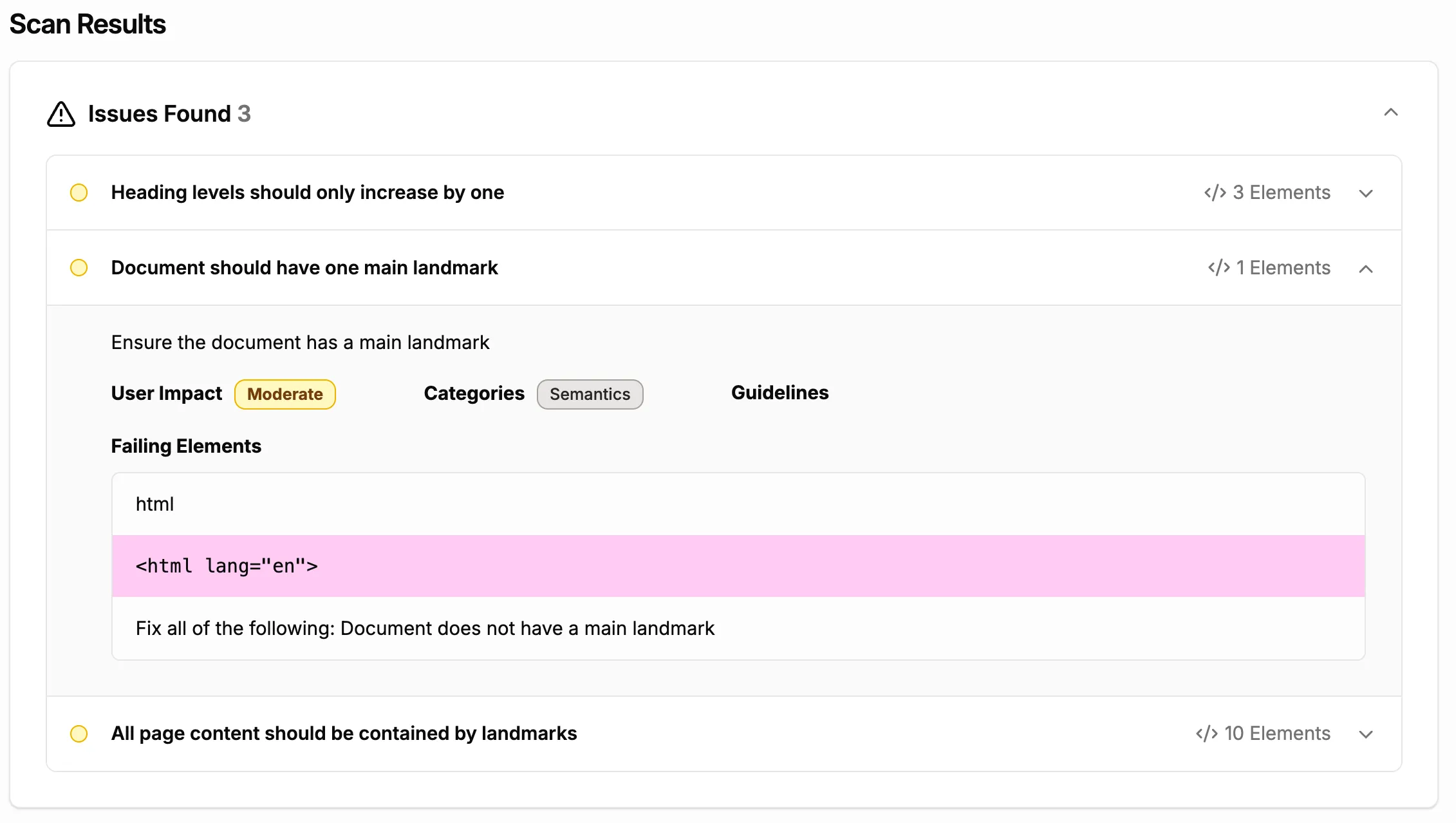
My homepage doesn’t have a main landmark at all. What is a main landmark, anyway?
When I look at the guidance on how to fix the issue, it states that HTML5 and ARIA landmarks help screen reader users navigate a page more easily.
Using elements like <header>, <nav>, <main>, and <footer> ensures content is grouped into meaningful regions.
Easy fix: wrap the primary content in a <main> element.
Issue 3: “All page content should be contained by landmarks”
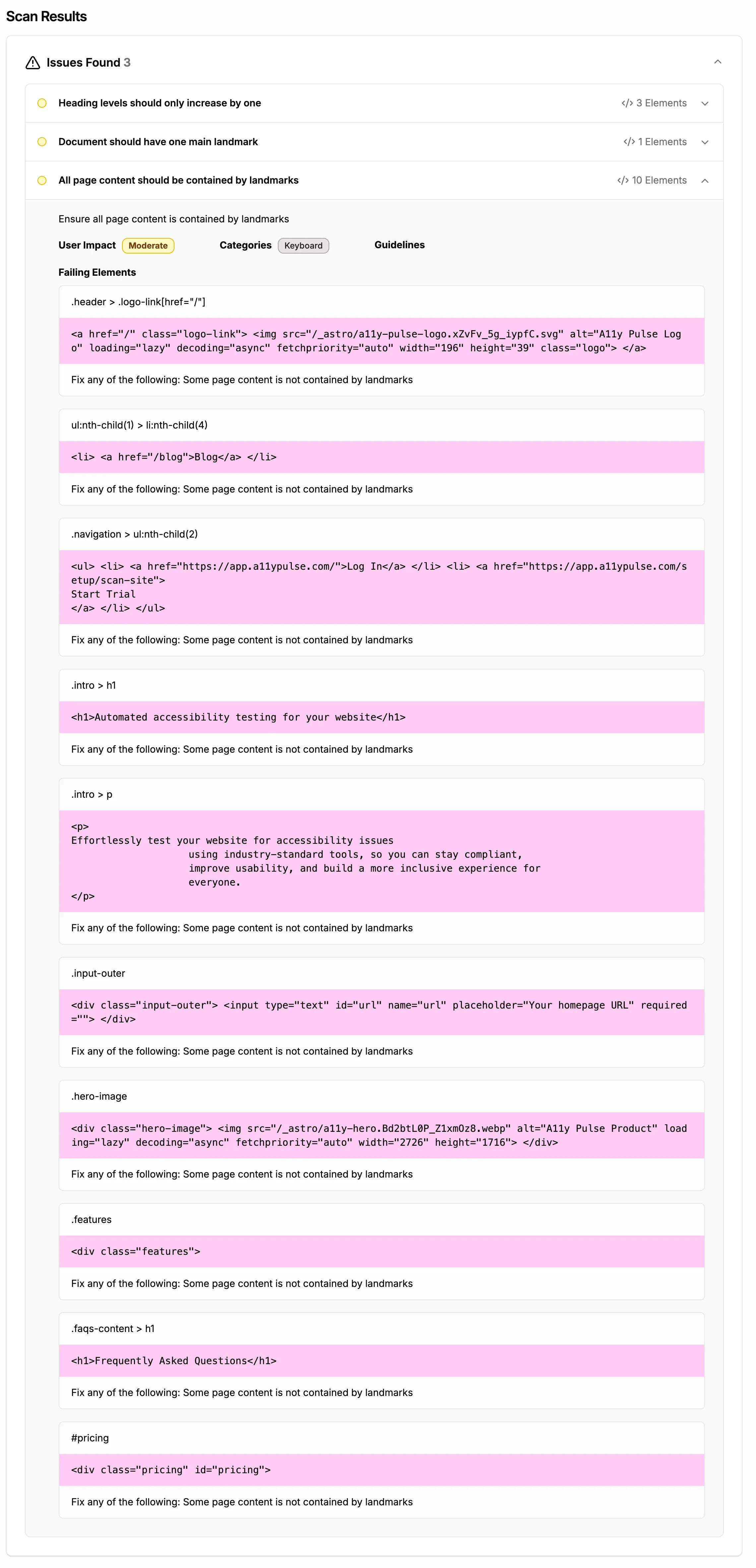
This one is related to the previous issue.
All content should live inside landmark regions so screen reader users can move around efficiently.
Since I already added the <main> landmark, many of the failing elements likely resolved themselves.
But I noticed my navigation wasn’t inside a <nav> element, and my header content was inside a <div> instead of <header>.
I fixed both.
Now the entire homepage is structured using meaningful landmarks.
Re-running the Scan
Time to publish the changes and hit “Re-scan Site”.
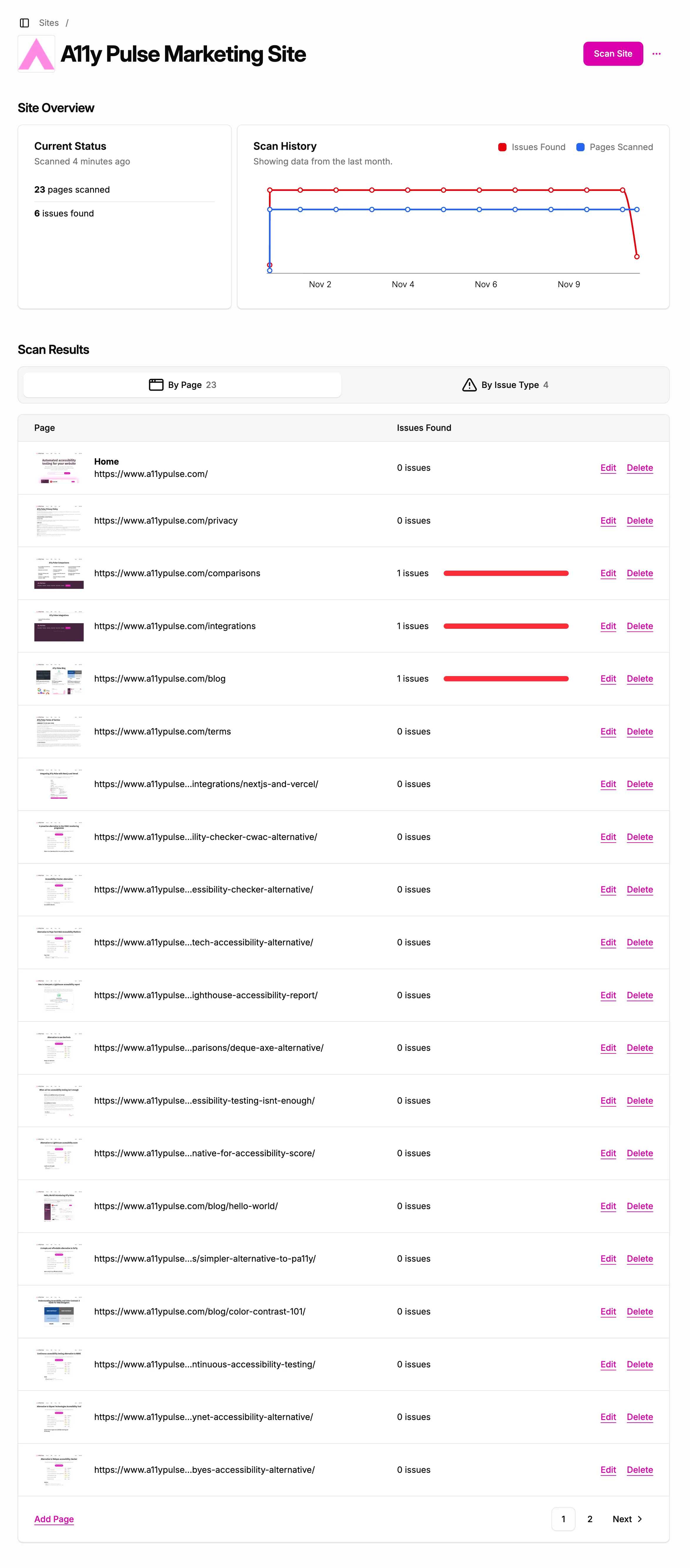
A minute later — boom! 0 issues on the homepage.
Even better, because I updated shared HTML templates, many of the other pages instantly improved too. My site-wide issue count dropped from 30 issues to 6 across 23 pages.
Turns out accessibility fixes aren’t as scary as they seem. Tools like A11y Pulse really help you make meaningful improvements quickly.
And now the A11y Pulse marketing site is more accessible to everyone — which feels genuinely great.
Next Up…
In the next post, I’ll dive into manual accessibility testing, where the deeper, context-based issues live — the ones automation can’t catch.
Stay tuned!
If you're not already an A11y Pulse user, sign up for a free trial and see how easy it is to bring continuous accessibility testing into your team's workflow.
Questions? We would love to hear from you. Drop us a line at [email protected].