
Published
Google’s Lighthouse tool was originally built in 2016 to measure web page speed. Over the years it has expanded, including audits relating to search engine optimization (SEO), web development best practices, and accessibility. In this post we’re going to focus on the accessibility part of Lighthouse, and help you understand how you can achieve a perfect score of 100.
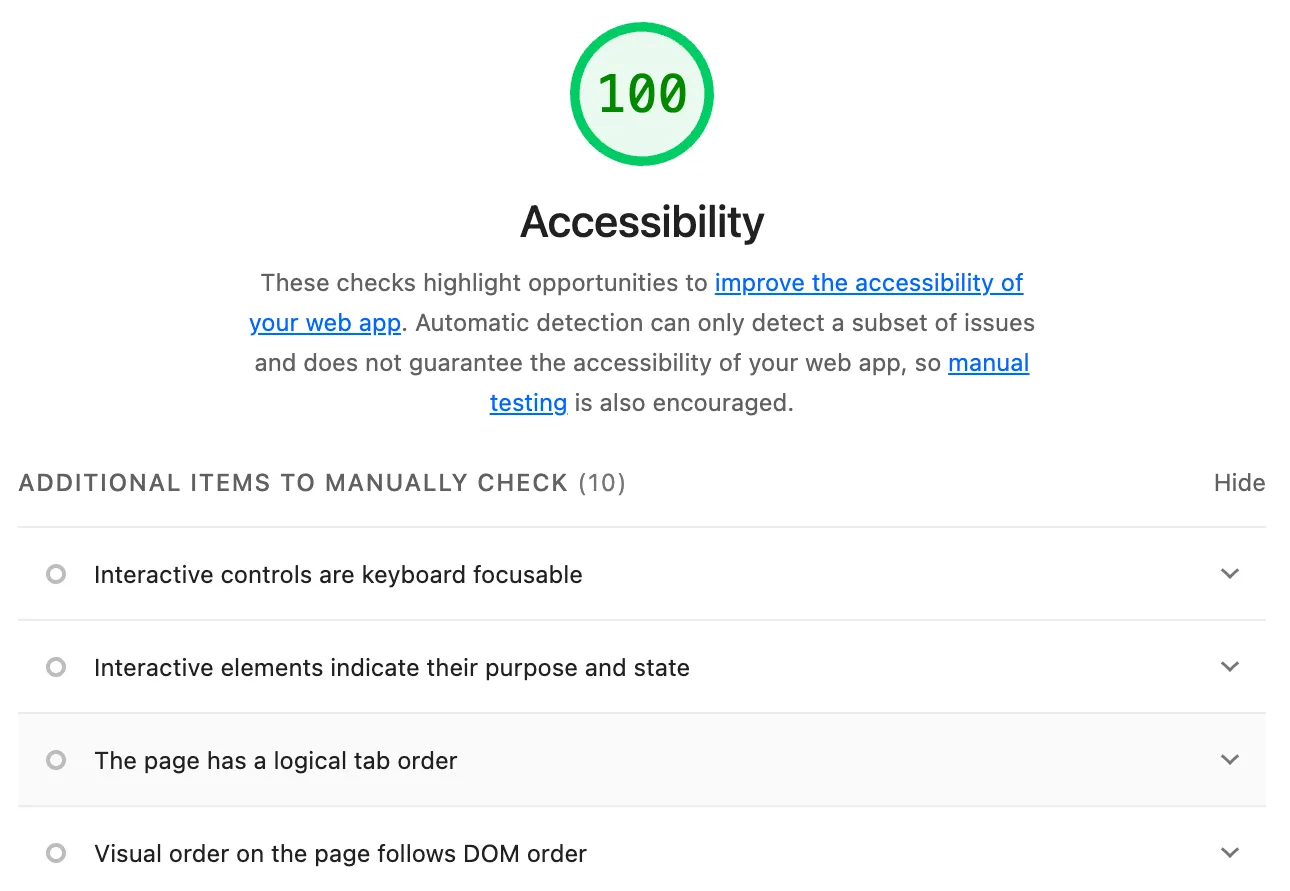
Getting a Lighthouse report
There are several ways to get a Lighthouse report. The simplest way is to use Google’s PageSpeed Insights tool, but you can also use Chrome DevTools or the Lighthouse command-line interface (CLI).
Reading the Accessibility section
If your Lighthouse Accessibility score is already 100, then congratulations! You can skip to the bottom of this section. If your score is less than 100, you should see groups of failed audits at the top of the report.
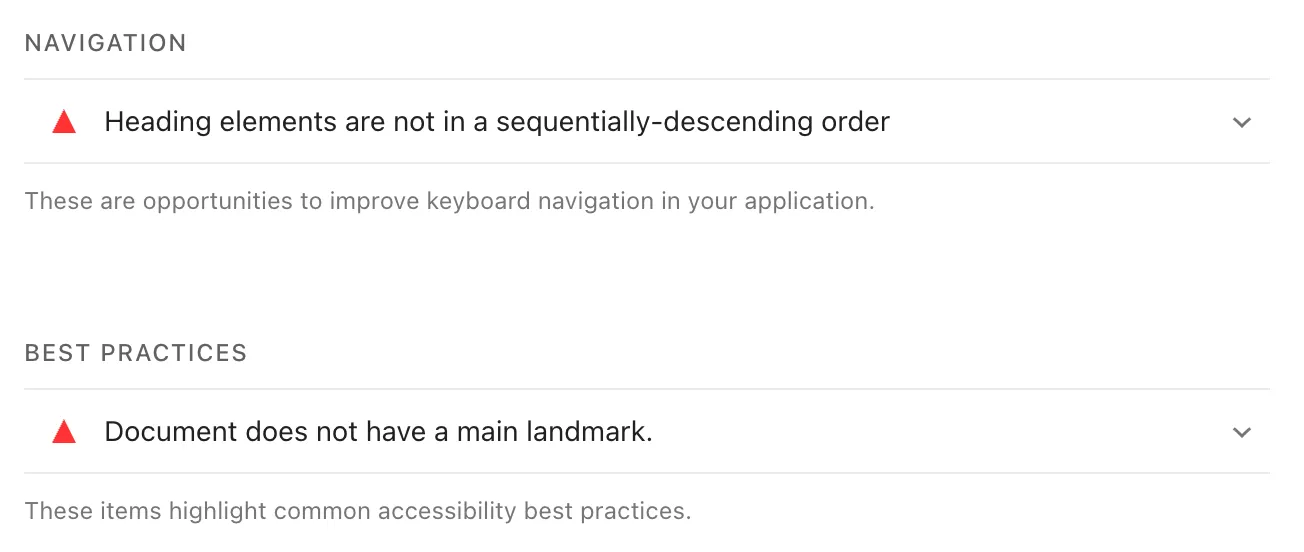
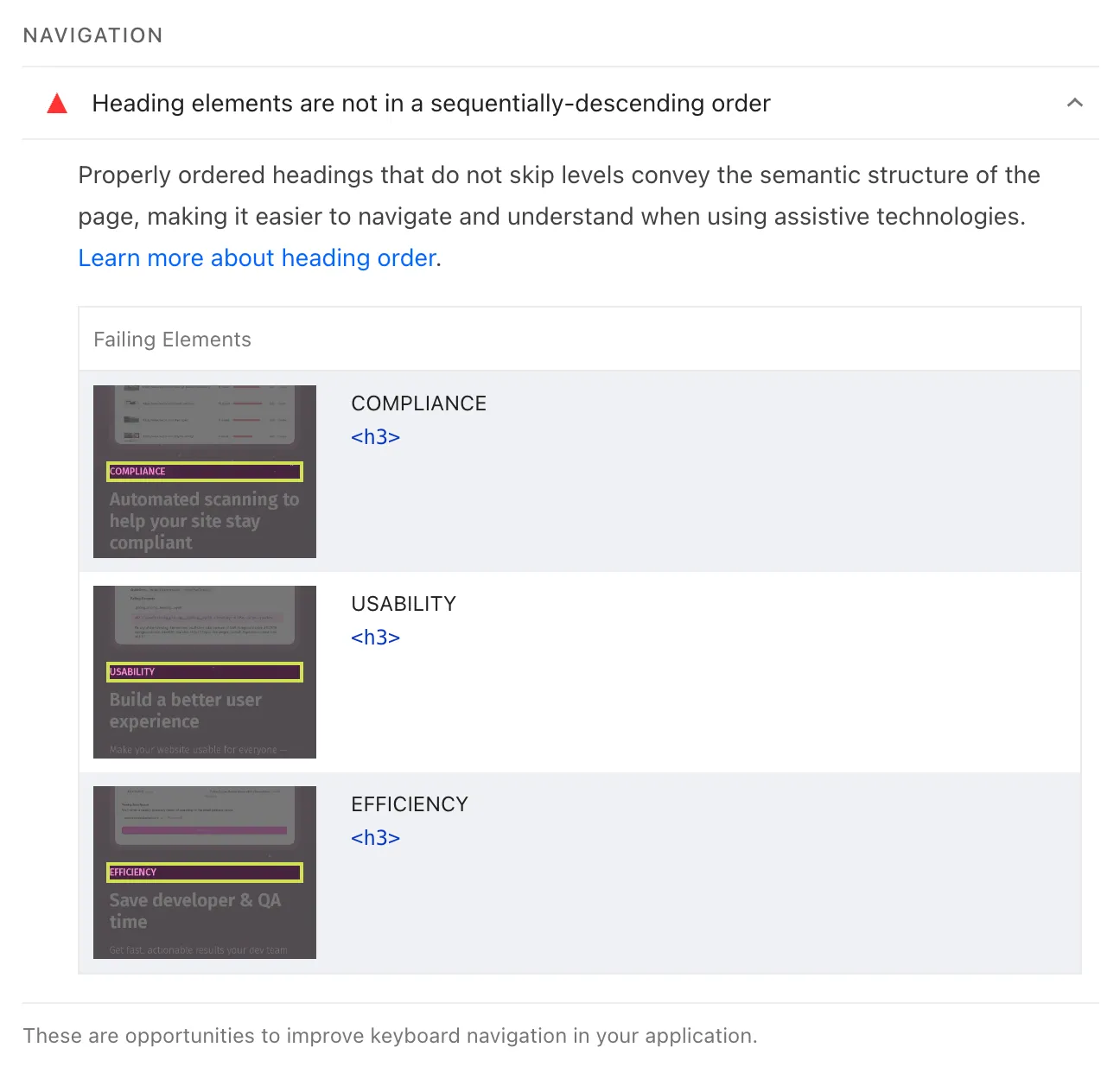
You can click on any of these audits to expand them and view more details. Some audits include information about specific elements on the page that are causing the audit to fail. These details are important because they show you what you need to fix in order for this audit to pass.
Reviewing passed audits
It’s also important to review passed audits, as they are often informative and can influence how you build features in the future. Lighthouse shows a list of passed audits, but does not include much detail about them.
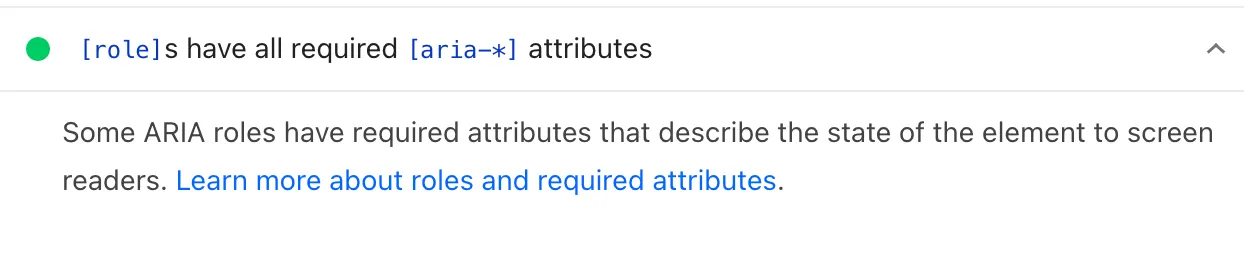
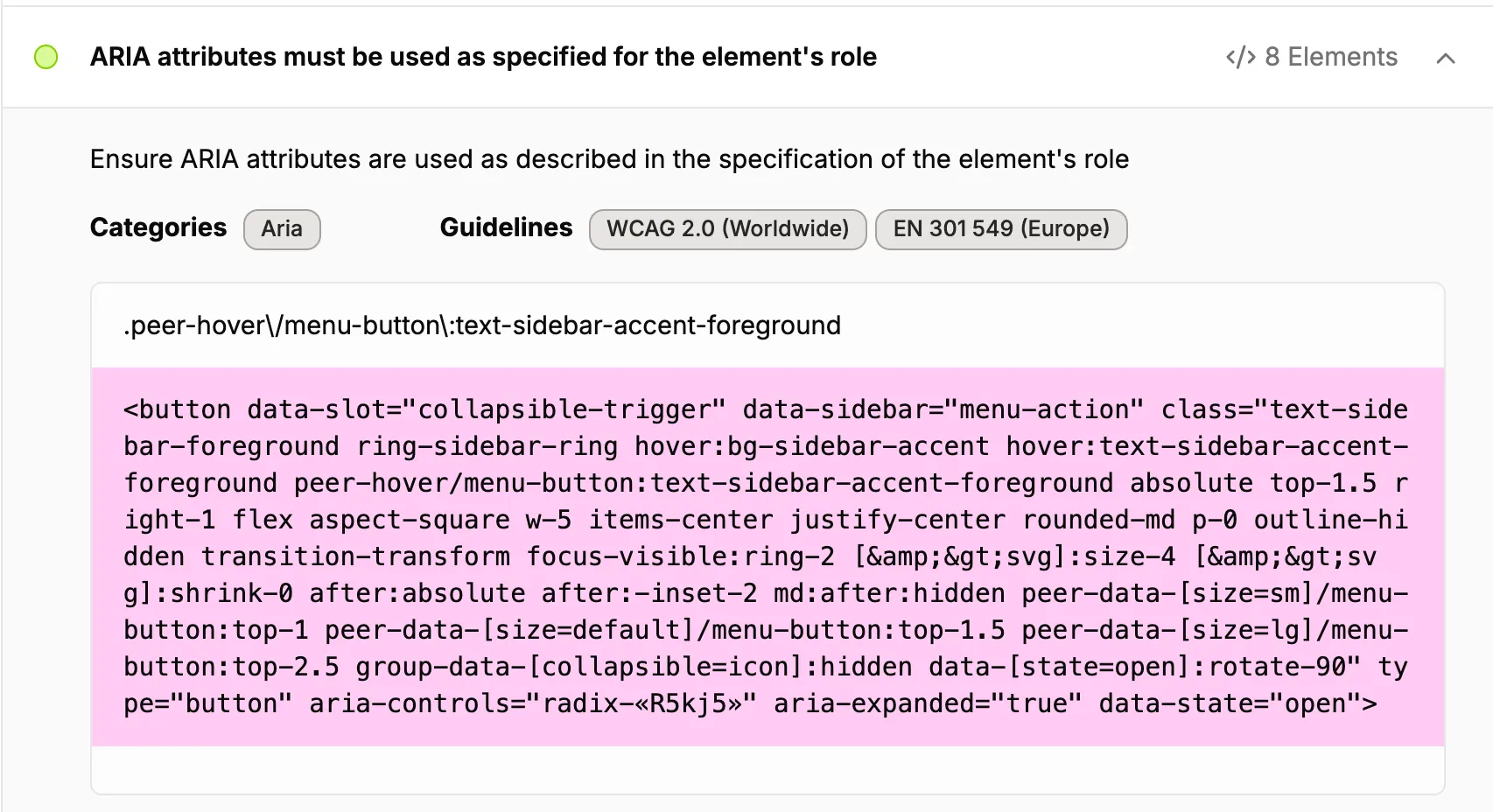
If you would like to see more detailed information about passed audits, A11y Pulse provides all of the same audits as Lighthouse but with much more detail. For example most passed audits in A11y Pulse contain a list of elements, as well as the HTML markup for each element.
If you're not already an A11y Pulse user, sign up for a free trial and see how easy it is to bring continuous accessibility testing into your team's workflow.
Questions? We would love to hear from you. Drop us a line at [email protected].