
Published
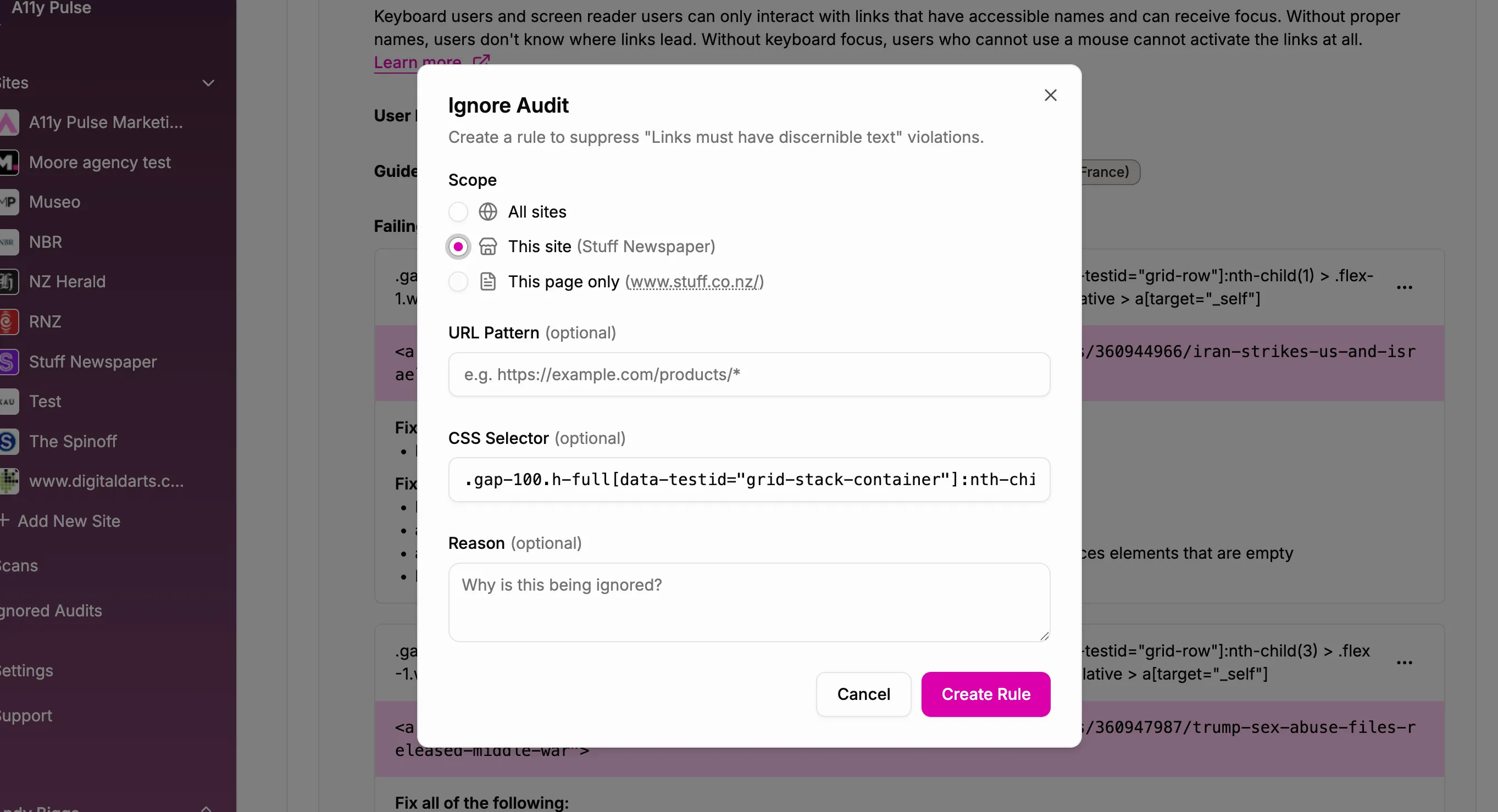
Not every flagged accessibility issue is a problem that needs fixing. Sometimes, what looks like an issue is actually an intentional implementation choice made for good accessibility reasons.
We’ve just launched a feature that lets you mark these intentional implementations as ignored, so they no longer clutter your scan results.
The problem: Intentional accessibility choices look like issues
A common example: you have an image inside a link, and the link already has descriptive text. To prevent screen readers from announcing the same information twice, you intentionally leave the image’s alt attribute empty.
This is the correct, accessible implementation. But automated tools — including A11y Pulse — will flag it as an issue because they can’t tell the difference between an intentionally empty alt attribute and one that was simply forgotten.
The result? Your scan results include “issues” that aren’t actually problems, making it harder to focus on the real work.
The solution: Mark issues as ignored
You can now ignore specific accessibility issues at either the page level or site level, depending on your needs.
When viewing a failed audit, you’ll see a small ”…” menu on the right side of each flagged element. Click it, select “Ignore issue,” and choose whether to ignore it just on this page or across your entire site.
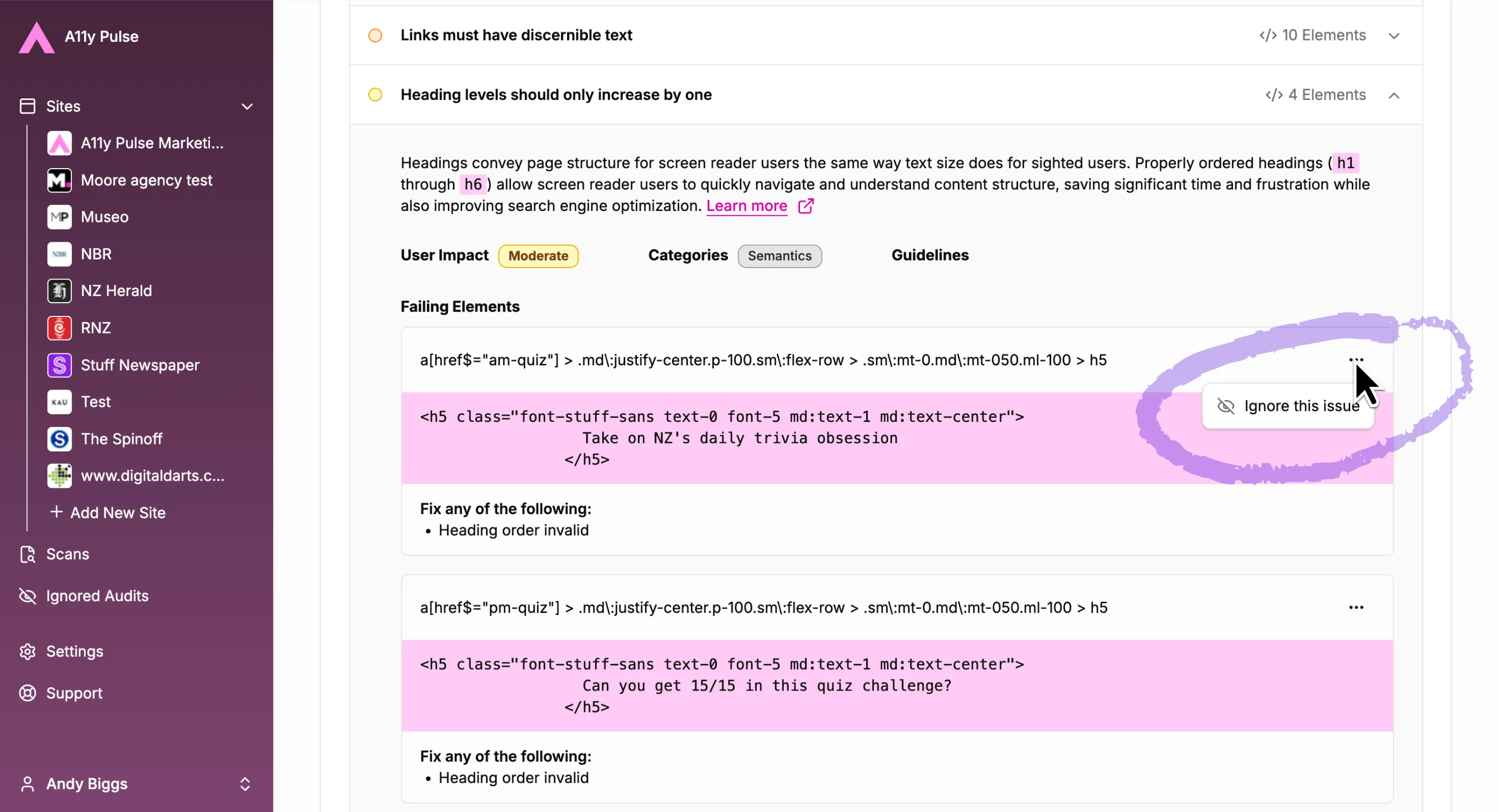
Once ignored, the issue no longer appears in your main scan results — keeping your reports focused on what actually needs attention.
Why this matters
Accessibility work requires context and judgement. Automated scans are incredibly helpful for catching common issues at scale, but they can’t replace human decision-making.
By letting you explicitly mark certain flagged items as intentional, A11y Pulse gives you more control over what you see in your reports. Your team can focus on real issues without getting distracted by false positives or intentional patterns that you’ve already validated.
Managing ignored issues
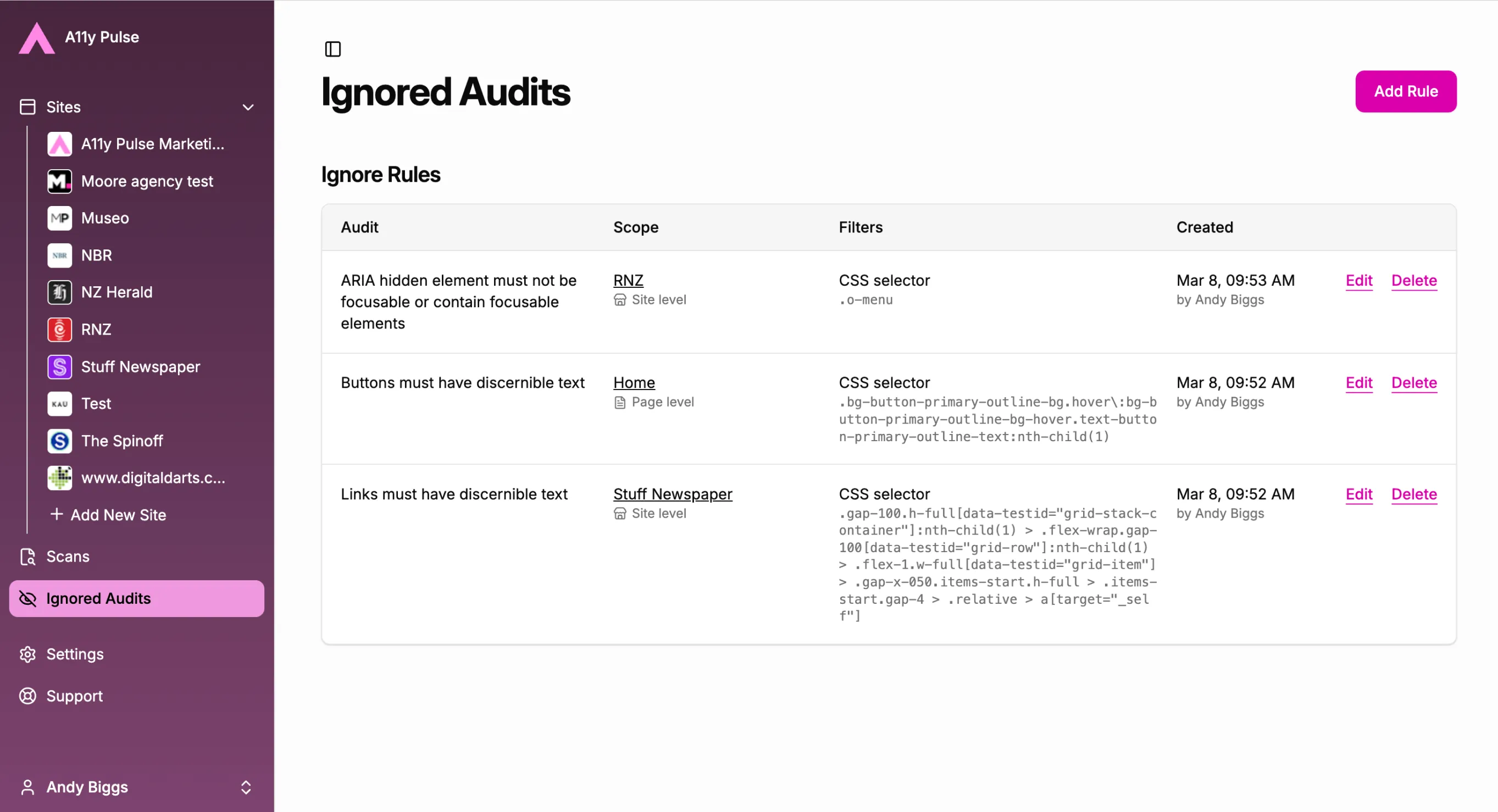
All ignored issues are available in a dedicated overview where you can review, edit, or delete them. This means you’re never locked in — if your implementation changes or you want to revisit a decision, you can easily un-ignore an issue and see it in future scans.
Built from customer feedback
This feature came directly from user requests. We heard from teams who were using A11y Pulse in their sprint workflows and wanted a way to acknowledge intentional accessibility decisions without losing visibility into real issues.
We’re grateful to the teams who took the time to explain their use cases and help us build something that genuinely solves the problem.
Try it now
The ignore feature is live for all A11y Pulse users. Next time you’re reviewing scan results, look for the ”…” menu on any flagged element to mark it as ignored.
Not using A11y Pulse yet? Sign up at a11ypulse.com and start monitoring your sites with the flexibility to mark intentional implementations as ignored from day one.
Not using A11y Pulse yet? Sign up for a free trial and see how easy it is to bring continuous accessibility testing into your team's workflow.
Questions? We would love to hear from you. Drop us a line at [email protected].