MCP Server
The A11y Pulse MCP server gives your AI coding agent direct access to your A11y Pulse account. Your agent can fetch accessibility violations and suggest targeted code fixes, add new sites and pages on the fly, and trigger scans, all without you leaving your IDE.
It works with Claude Code, Cursor, and GitHub Copilot.
Contents:
When to use this
The MCP server fits naturally into a few common development moments:
- Fixing accessibility violations as part of a development session. Your agent can pull the latest scan for any of your sites, prioritise issues by severity, trace each failing element back to its source component, and suggest concrete code changes, all in one flow. Most effective when you have a backlog of issues and want to make systematic progress on them, or when you want to address violations immediately after a new scan.
- Setting up A11y Pulse for a new site. When you’ve just shipped something new, you can ask your agent to add the site and any extra pages without leaving your editor. The agent will offer to customise the relevant settings, like which accessibility guidelines to audit against.
- Triggering and reviewing scans on demand. Right after a deploy, ask your agent to run a fresh scan and walk you through any new issues. The agent will queue the scan, wait for it to finish, then move into the fix workflow once results are in.
Setting up
Step 1: Get your API key
The MCP server authenticates using your A11y Pulse API key. Go to Settings → Integrations and find the API Keys section to create one if you don’t have one yet.
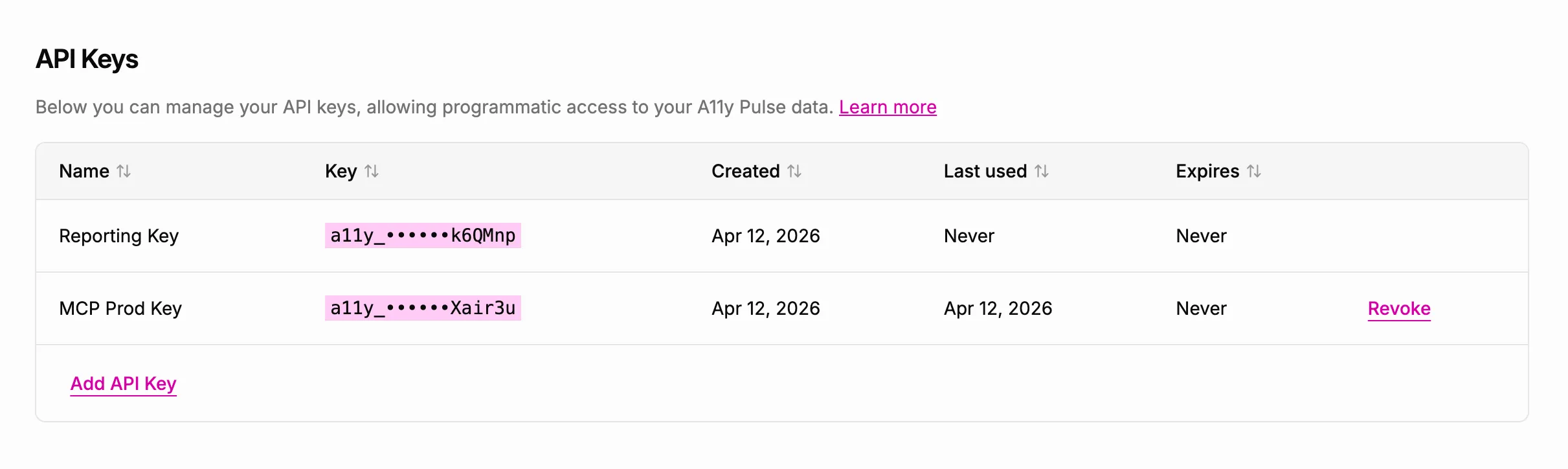
When you create the key, choose which permissions to grant. These control which MCP tools your agent can use:
- Read access: required for all MCP usage. Lets your agent list sites, fetch scans, and suggest fixes.
- Manage sites & pages: required if you want your agent to add or change sites and pages (
add_site,update_site,add_pages,update_page,delete_page). - Trigger scans: required if you want your agent to kick off scans on demand (
start_scan,wait_for_scan).
If you’re not sure, grant all three. You can always create a more restrictive key later and swap it in. If your agent calls a tool that needs a permission your key doesn’t have, you’ll get a clear error message naming the missing permission so you know what to add.
Keep your API key somewhere safe. You’ll need it in the next step.
Step 2: Add to your AI coding tool
Go to Settings → Integrations → MCP Server in A11y Pulse. Select your tool and copy the config snippet, then add it to your MCP settings file.
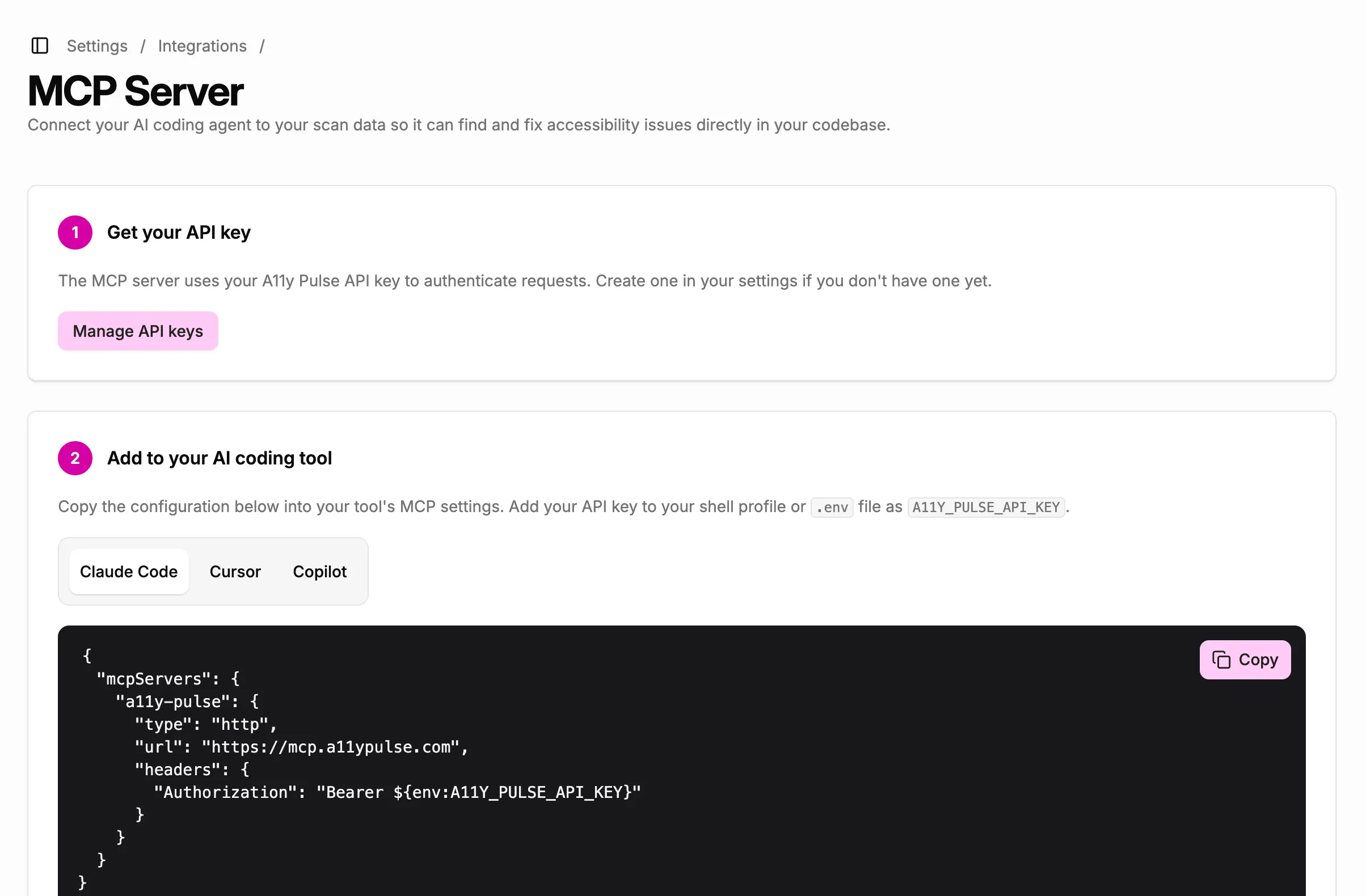
The setup page tells you exactly which file to paste into for your tool. For Claude Code and Cursor, you’ll also need to add your API key as an environment variable. The snippet includes a placeholder showing the variable name to use. Copilot will prompt you for the key when it first connects.
Available tools
The MCP server exposes fourteen tools your agent can call. You don’t need to invoke these manually. Your agent discovers and calls them automatically based on what you ask it to do. Each tool requires one of the API key permissions described above.
Reading scan data
get_sites
Returns a list of all sites in your A11y Pulse account, including issue counts by severity (critical, serious, moderate, minor) from the latest scan. Your agent uses this to present an overview and help you decide which site to work on. Requires Read access.
get_latest_scan
Fetches the complete latest scan for a site. Returns a per-page breakdown with all violations for each page, including the full detail for each failing HTML element: the rendered HTML snippet, CSS selectors, XPath, and fix instructions (failureSummary). Use this when you want to work across an entire site. Requires Read access.
get_page_scan
Fetches the latest scan for a single page. Returns the same detail as get_latest_scan but scoped to one URL. Useful when you want to focus on a specific page, or when a full site scan is too large to work through in one session. Requires Read access.
Suggesting fixes
fix_site_accessibility
A compound tool that orchestrates the full fix workflow for a site. It fetches the latest scan, prioritises issues by impact (critical → serious → moderate → minor), and structures the output with an impact summary, a conformance level summary, and per-page issue details. Every issue is tagged with the conformance level it maps to, usually naming the revision it applies from (for example “WCAG 2.1+ AA”), or as “Best Practice” where it doesn’t map to a success criterion, so your agent can report against a specific conformance target. It references the MCP resources to guide your agent through mapping DOM nodes to source files and generating fixes. Optionally accepts codebase context to help your agent find the right files. Requires Read access.
fix_page_accessibility
The same compound workflow as fix_site_accessibility, but scoped to a single page. Use this when you want to focus on one URL, or when your agent suggests narrowing down from a large site scan. Requires Read access.
Managing sites and pages
add_site
Adds a new site to A11y Pulse and auto-creates a Home page from the URL. Your agent will offer to customise the optional settings: which accessibility guidelines to audit against (defaults to a WCAG + EN 301 549 + Section 508 baseline; pick region-specific ones like was12 for New Zealand or pbsar2018 for UK public-sector sites), whether the crawler should auto-discover additional pages, and the daily scan time. Requires Manage sites & pages.
update_site
Updates an existing site’s settings — its name, accessibility guidelines, crawler behaviour, or daily scan schedule. Useful when you want to change what a site is audited against without recreating it. Requires Manage sites & pages.
add_pages
Adds one or more pages to an existing site. All-or-nothing: if any URL fails validation, no pages are added. Useful when you ship a new page and want to start auditing it without leaving your editor. Requires Manage sites & pages.
get_pages
Lists the pages registered on a site, with each page’s ID, name, and URL. Your agent uses this to find the page ID for get_page_scan, update_page, or delete_page. Requires Read access.
update_page
Changes a page’s name or URL. The page keeps its scan history, so you can point it at a preview deployment to verify a fix before it ships. Your agent points the page at the preview, starts a scan, and restores the original URL as soon as get_scan_status shows the scan has picked up the preview URL. Requires Manage sites & pages.
delete_page
Removes a page from its site so it’s no longer scanned. Your agent will confirm with you before deleting. Requires Manage sites & pages.
Triggering scans
start_scan
Queues a new scan for a site and returns immediately with a scan ID. The scan itself runs asynchronously and typically takes a few minutes. Your agent will tell you about the wait and then either block on wait_for_scan for you, or check back later via get_latest_scan. Requires Trigger scans.
wait_for_scan
Waits for a scan to finish (up to ~10 minutes) and returns a per-page audit summary on completion. Usually called right after start_scan so your agent can work on the results as soon as they’re ready. Requires Read access.
get_scan_status
Returns a scan’s status and how many of its pages have been scanned, without waiting for it to finish. Your agent uses this when scanning a preview deployment, to know when it’s safe to restore the original page URLs. Requires Read access.
Using your agent effectively
Start with the compound tools
For most sessions, ask your agent to fix accessibility issues for a site or page directly. It will call fix_site_accessibility or fix_page_accessibility and handle the entire workflow: fetching data, prioritising issues, mapping them to source code, and proposing fixes.
A good starting prompt:
Fix the accessibility issues on my marketing site.
If you have multiple sites, your agent will call get_sites first and ask you to confirm which site to work on.
Set up new sites and scan them on the fly
If you’ve just shipped a new site or page, you can ask your agent to add it without leaving your editor:
Add https://www.example.com/ as a new site in A11y Pulse, then run a scan and fix any critical issues.
The agent will call add_site, walk you through the optional settings (which accessibility guidelines apply, scan schedule, crawler behaviour), then call start_scan and wait_for_scan to surface the first results. Once the scan finishes, it’ll switch into the usual fix workflow.
For an existing site where you’ve added a new page:
Add https://www.example.com/pricing to my marketing site and trigger a scan.
The agent will call add_pages, then start_scan for the site so the new page gets audited.
Give your agent codebase context
The MCP server returns DOM-level data: HTML snippets, CSS selectors, and XPaths. For your agent to map these back to source files accurately, it needs to know where your code lives. If you don’t provide this upfront, your agent will ask before proceeding.
Be ready to answer:
- Which app or package in your repo contains the code for the scanned site? (e.g.
apps/webin a monorepo) - Where do component and page source files live? (e.g.
apps/web/src/components) - Where are your styles and design tokens defined? (e.g. a Tailwind config or CSS variables file)
This is especially important in monorepos where a single repo may contain code for multiple sites (marketing, app, docs). The scanned URL only maps to one of them.
Work through large sites page by page
For sites with many pages, your agent may suggest switching from fix_site_accessibility to fix_page_accessibility to keep the session focused. This is normal. Accessibility work on large sites is most manageable one page at a time.
Ask your agent to list the pages with the most critical issues first, then tackle them in order.
Review fixes before applying
Your agent will present proposed fixes organised by source file, with a before/after code change and a confidence level (high, medium, or low) for each. Review these before approving. The agent will not apply changes automatically.
For Fix any violations (where multiple fixes are valid), your agent will choose the most appropriate one for the component’s context. If you disagree with the choice, you can tell it to use a different approach before it applies the change.
After applying fixes, your agent will summarise what changed. It will not commit. That’s left to you.
Good to know
- Permission scoping: What your agent can do depends entirely on which permissions you grant the API key. A read-only key (Read access only) restricts the server to fetching scan data and suggesting fixes, useful if you don’t want an agent able to create or scan things on your behalf.
- No live scanning: The server doesn’t run scans itself. It triggers scans via the same scanner infrastructure the dashboard uses, then reads the results when they’re ready.
- Status shown as “API key available”: The integrations page shows whether you have an API key set up, not whether an agent is currently connected. There’s no way to detect active MCP client connections server-side.
- Scan duration: Scans typically take a few minutes. If you trigger one via
start_scan, your agent will tell you it’ll report back, then block onwait_for_scanuntil the scan finishes (or up to ~10 minutes, after which it returns a “still running” message and you can either ask the agent to wait again or check back later). - Very large sites: For sites with 100+ pages,
get_latest_scanreturns all data. If the response is too large for your agent’s context, it will suggest switching toget_page_scanfor focused work on individual pages. - Rate limiting: The server applies a rate limit of 100 requests per minute per API key. Normal agent sessions won’t hit this.
- API key security: Never paste your API key directly into a config file that gets committed to source control. Always use an environment variable (
A11Y_PULSE_API_KEY) or your tool’s secrets prompt (Copilot).