
This page walks you through the basics of using A11y Pulse to monitor your website’s accessibility.
Contents:
- Your sites
- Monitoring a site
- Viewing accessibility issues by page
- Viewing accessibility issues by issue type
- Monitoring more pages on your site
- How to know when your site’s accessibility gets worse
Your sites
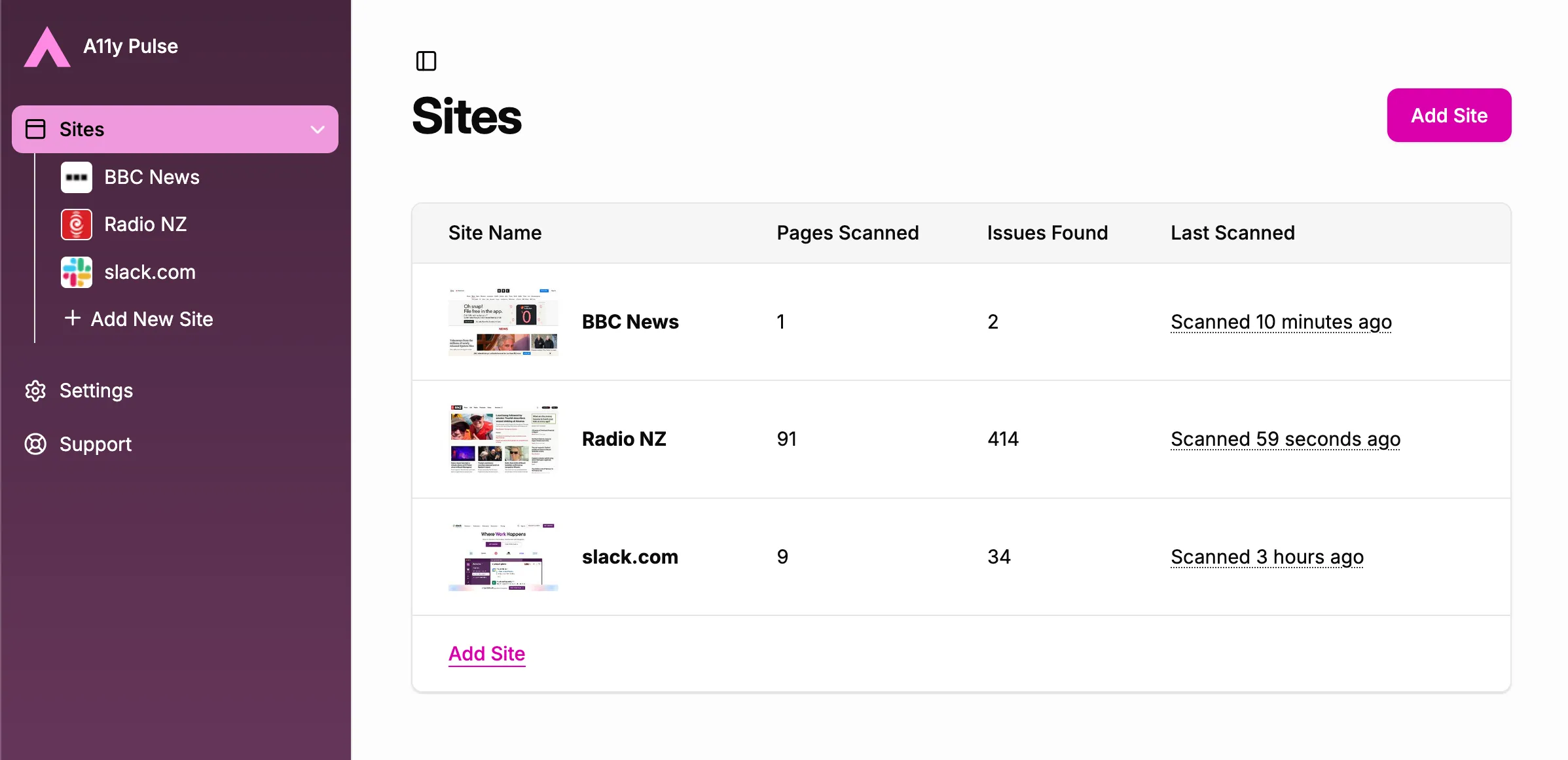
The first screen you will see in A11y Pulse is the sites index. This shows all of the sites that you are monitoring. You can monitor a new site at any time by clicking the Add Site button at the top-right of the screen (this may not be visible if you do not have the correct permissions).
Click on any site name in the navigation on the left of the screen or in the main area to view that site’s details.
Monitoring a site
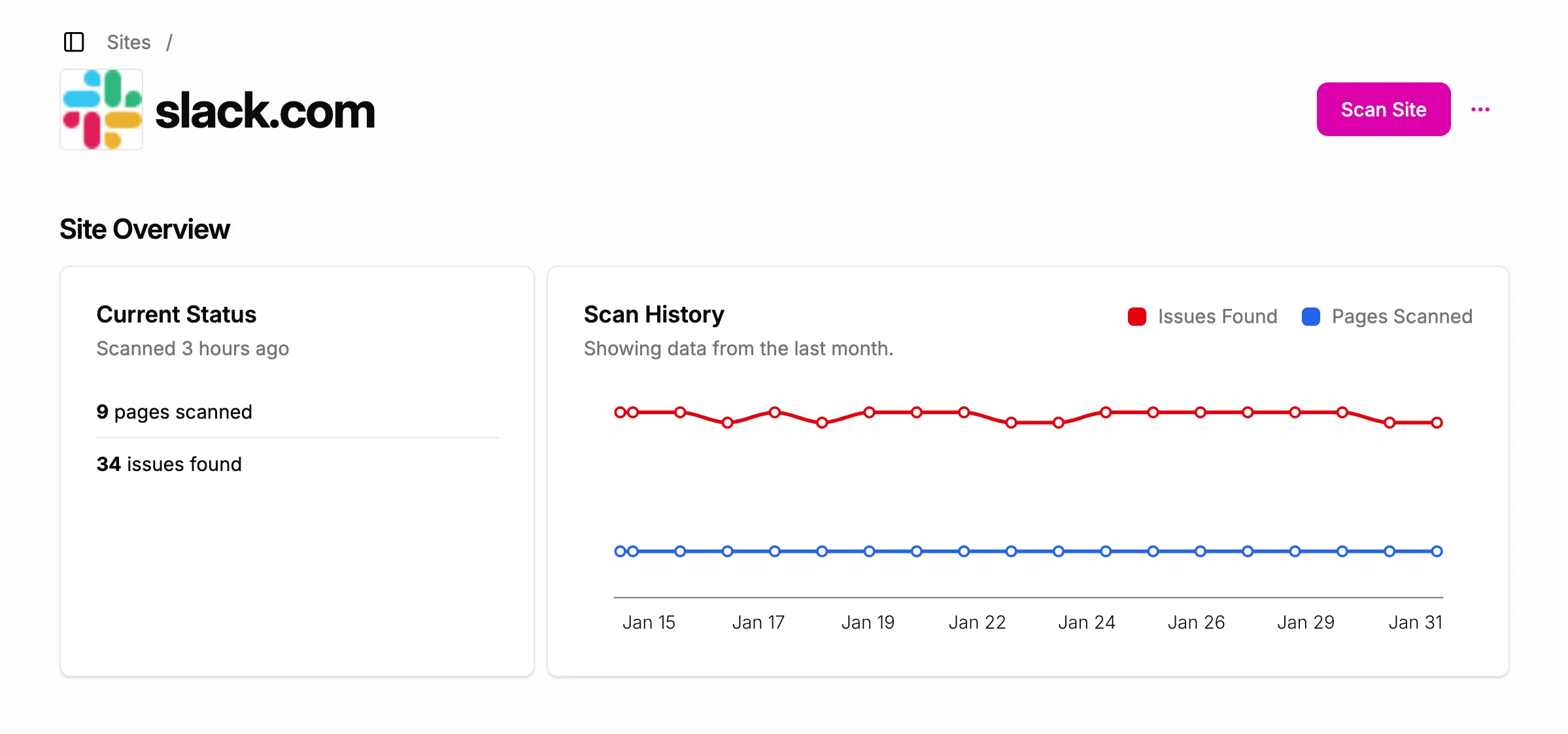
Your sites are scanned for accessibility issues once per day. When viewing a site’s details, you will a quick overview of the site’s current status and scan history, as well as a list of the individual pages that are being scanned.
The Current Status section shows stats from the latest scan.
The Scan History section shows up to one month of past scans, with the number of pages scanned and issues found for each scan. This section tells you at a glance whether your site’s accessibility is getting better or worse over time.
You can click Scan Site at the top-right of the screen to trigger a new scan at any time.
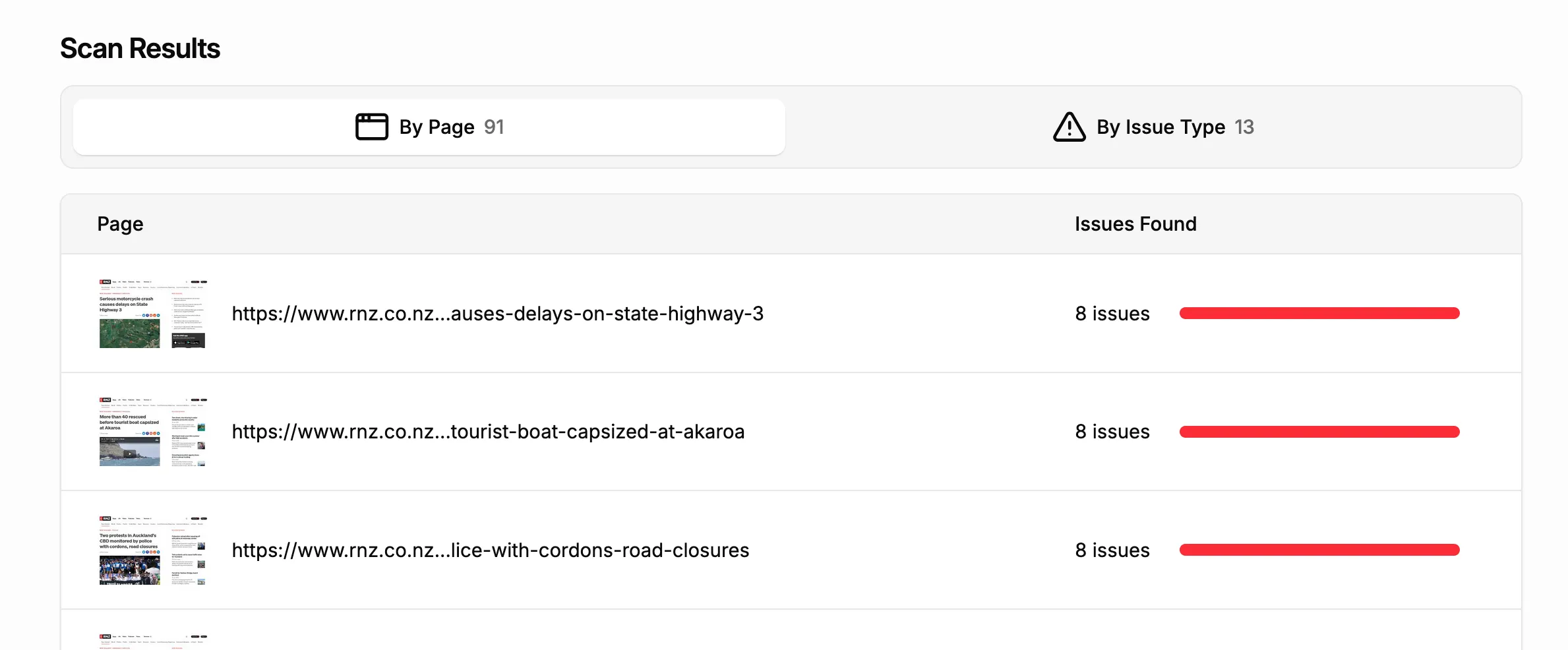
The Scan Results section shows the details of the most recent scan. You can view accessibility issues either grouped by page or by issue type, using the tabs at the top of the section.
Viewing accessibility issues by page
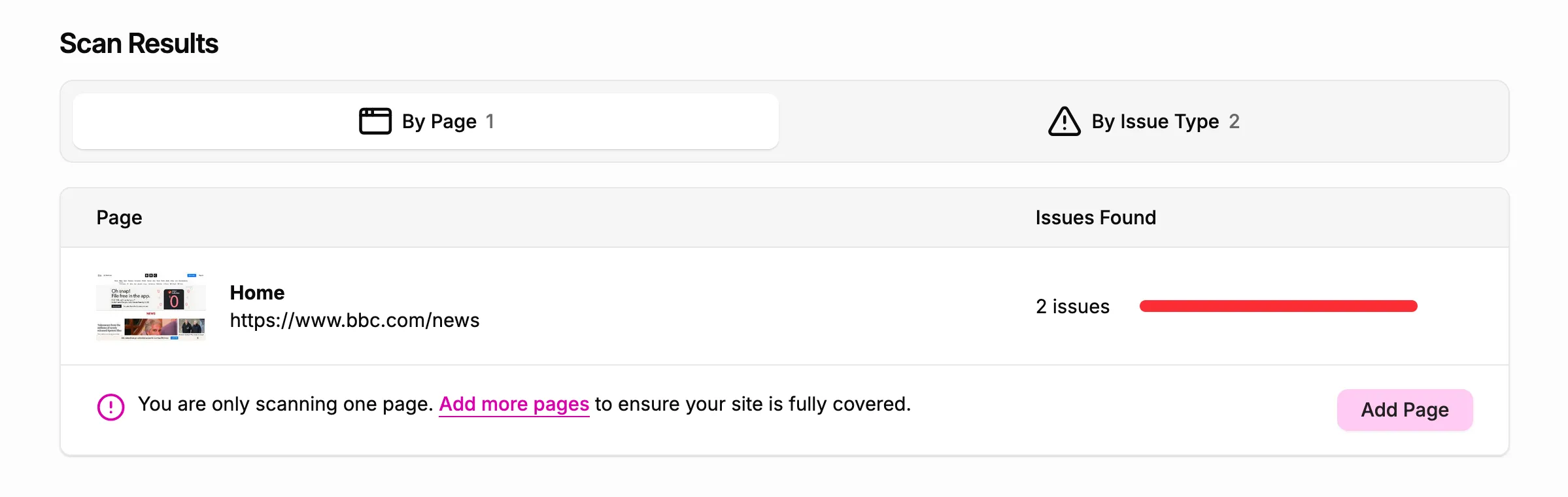
When viewing By Page, you will see a list of every page that was checked during the most recent scan, along with how many issues were found on each page. You can click on any page URL to view that page’s detailed accessibility report.
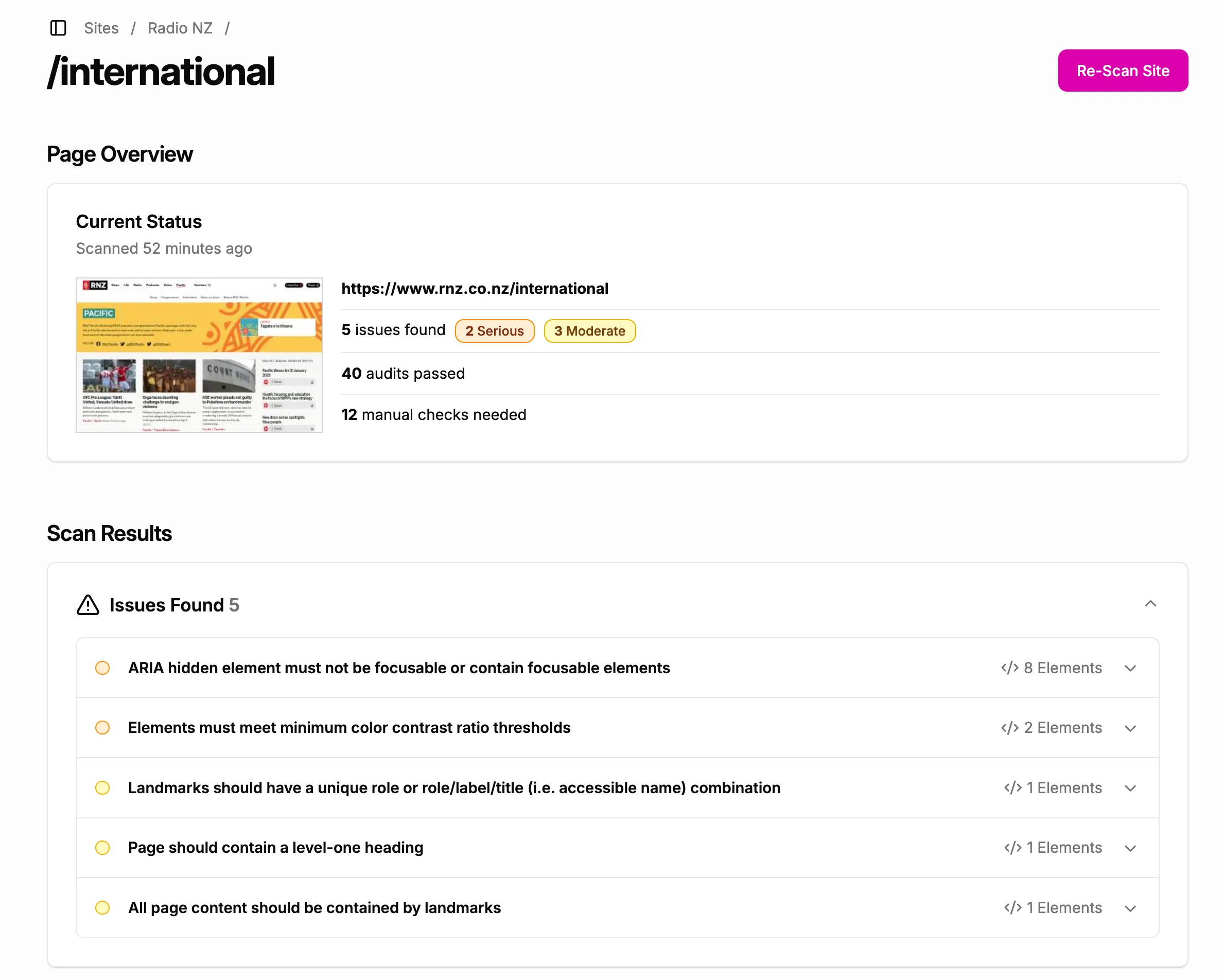
On the page details screen, you will see a summary of the page’s accessibility issues, as well as a detailed list of every issue. These issues can be expanded by clicking on them, revealing more information about which elements on the page are affected and how to fix them.
Viewing accessibility issues by issue type
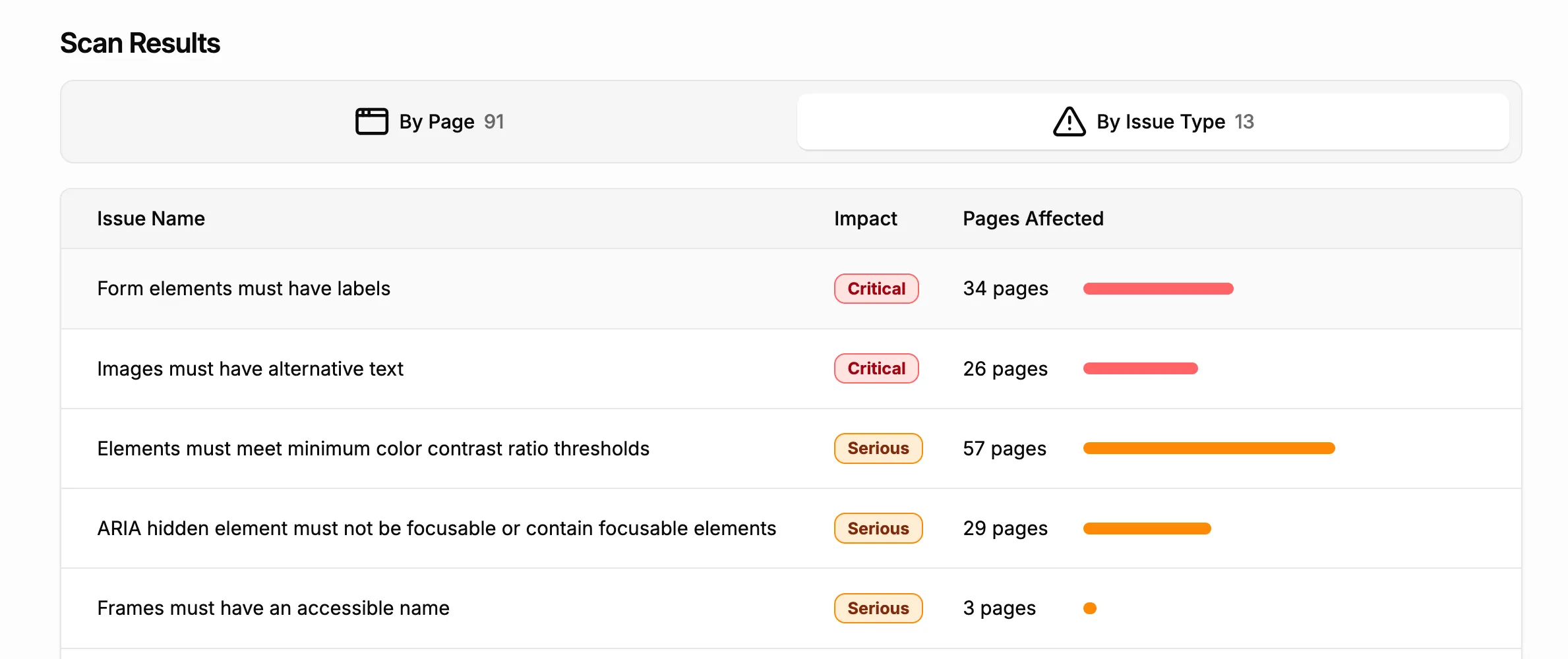
When viewing By Issue, you will see a list of every type of accessibility issue that was found during the most recent scan, along with how many pages were affected by each issue. You can click on any issue type to view more details.
Monitoring more pages on your site
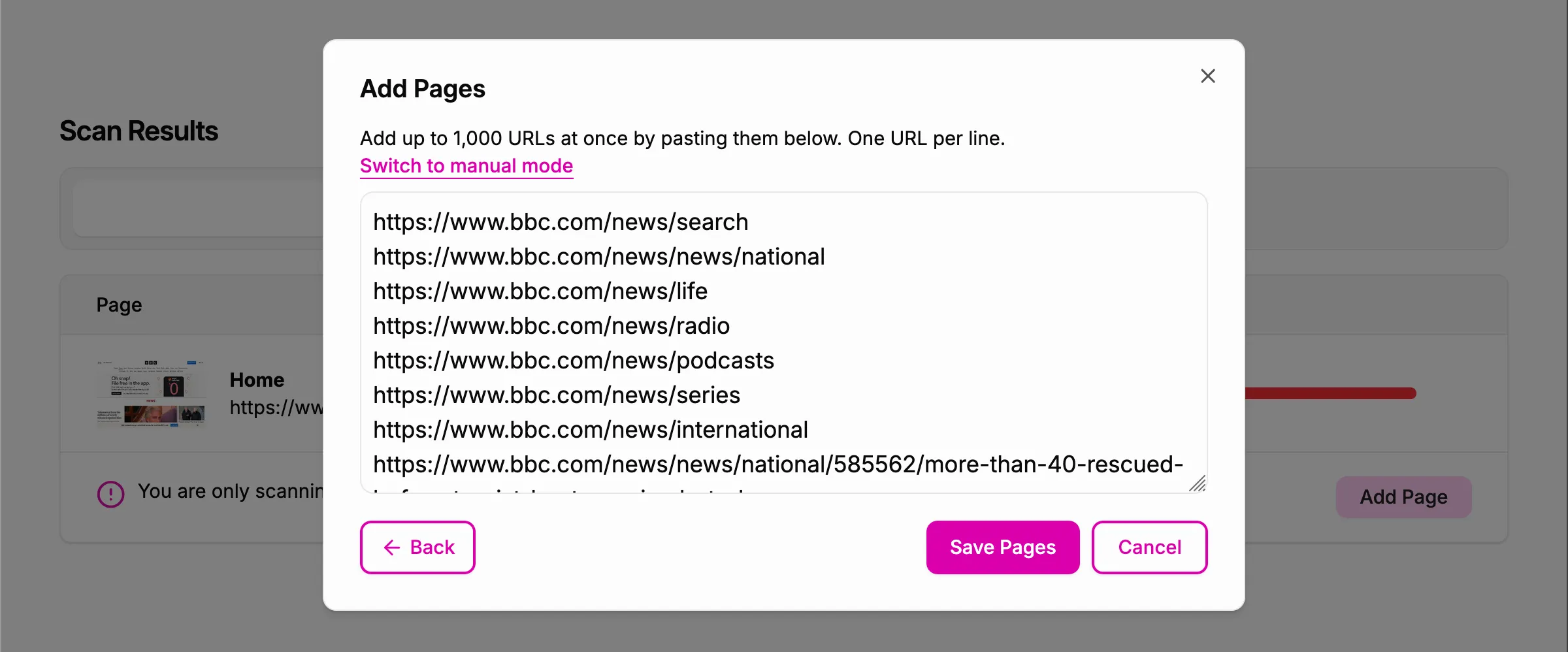
We recommend monitoring as many pages on your site as possible to get a complete picture of your site’s accessibility. If you have just created a new site, you may see a message indicating that only one page is being monitored. You can add more pages to a site at any time by clicking the Add Page button.
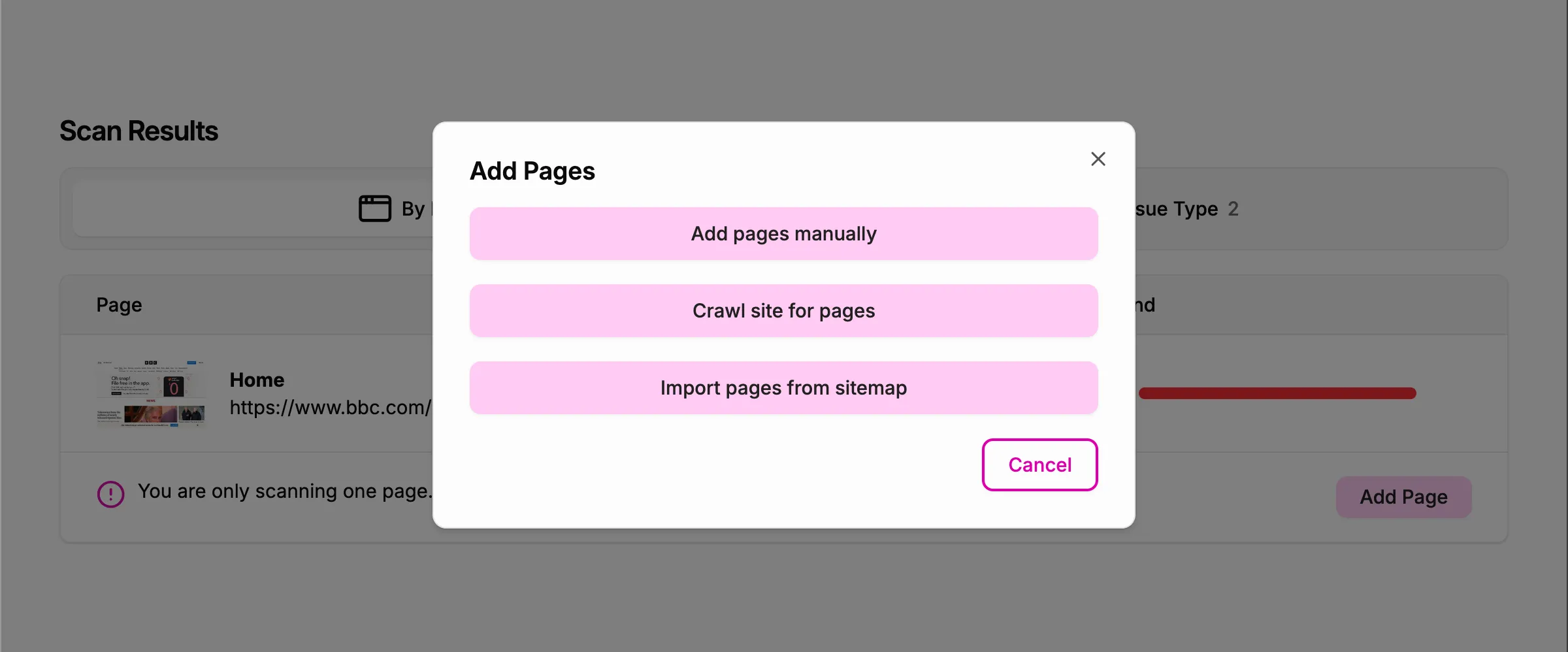
Pages can be added in three ways:
- Manually, where you enter each page URL that you want to monitor.
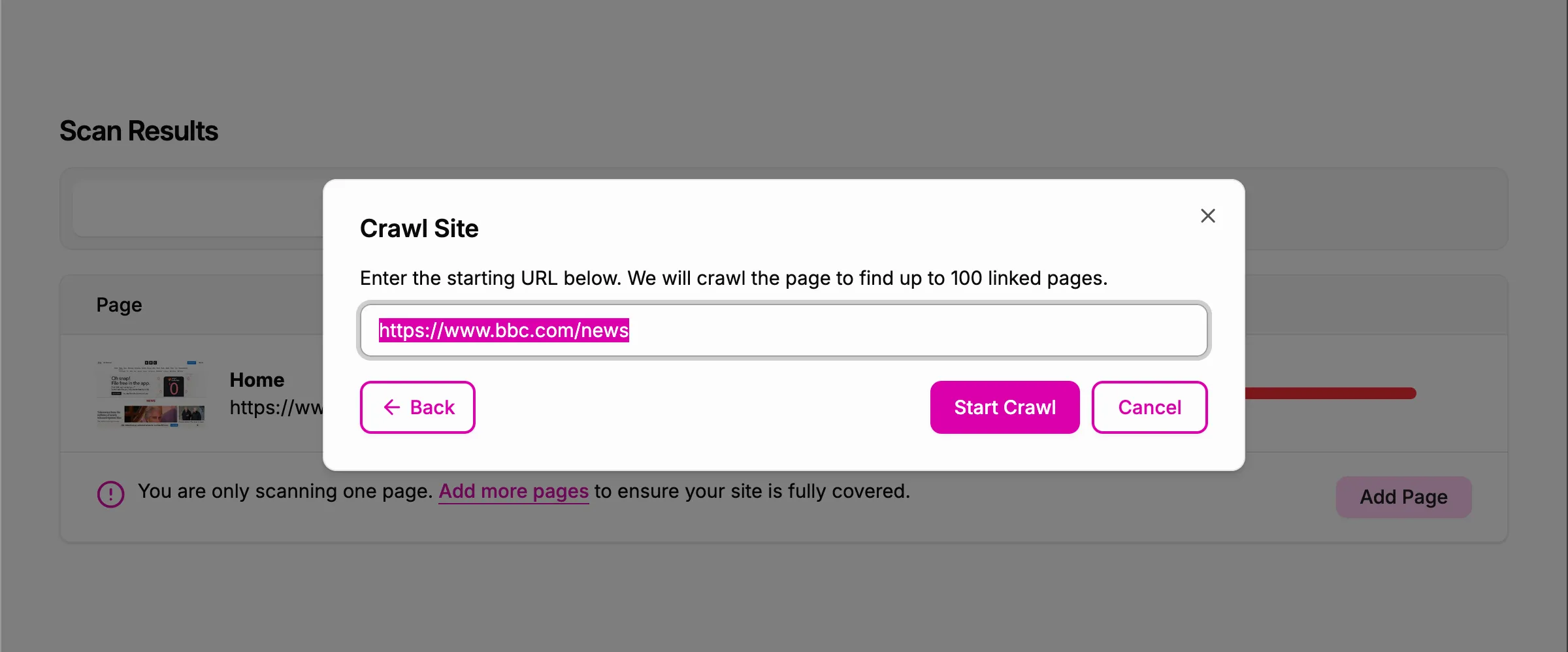
- By crawling your site, where A11y Pulse will attempt to discover pages on your site automatically. ℹ️ Note that this method may not work for sites that use bot protection.
- By reading a sitemap, where A11y Pulse will read a sitemap file from your site to discover pages.
If you choose to crawl your site, you will have the option to choose a starting URL. If you choose to read a sitemap, you will need to provide the URL of the sitemap file.
When A11y Pulse has finished crawling your site or reading your sitemap, you will see a list of discovered pages. You can select which pages you want to monitor, and then click the Save Pages button to add them to your site.
How to know when your site’s accessibility gets worse
A11y Pulse has a powerful alerting feature that can notify you by email or Slack when your site’s accessibility gets worse. Please see our alerting documentation for more information.