Find, fix, and verify accessibility issues with your AI coding agent

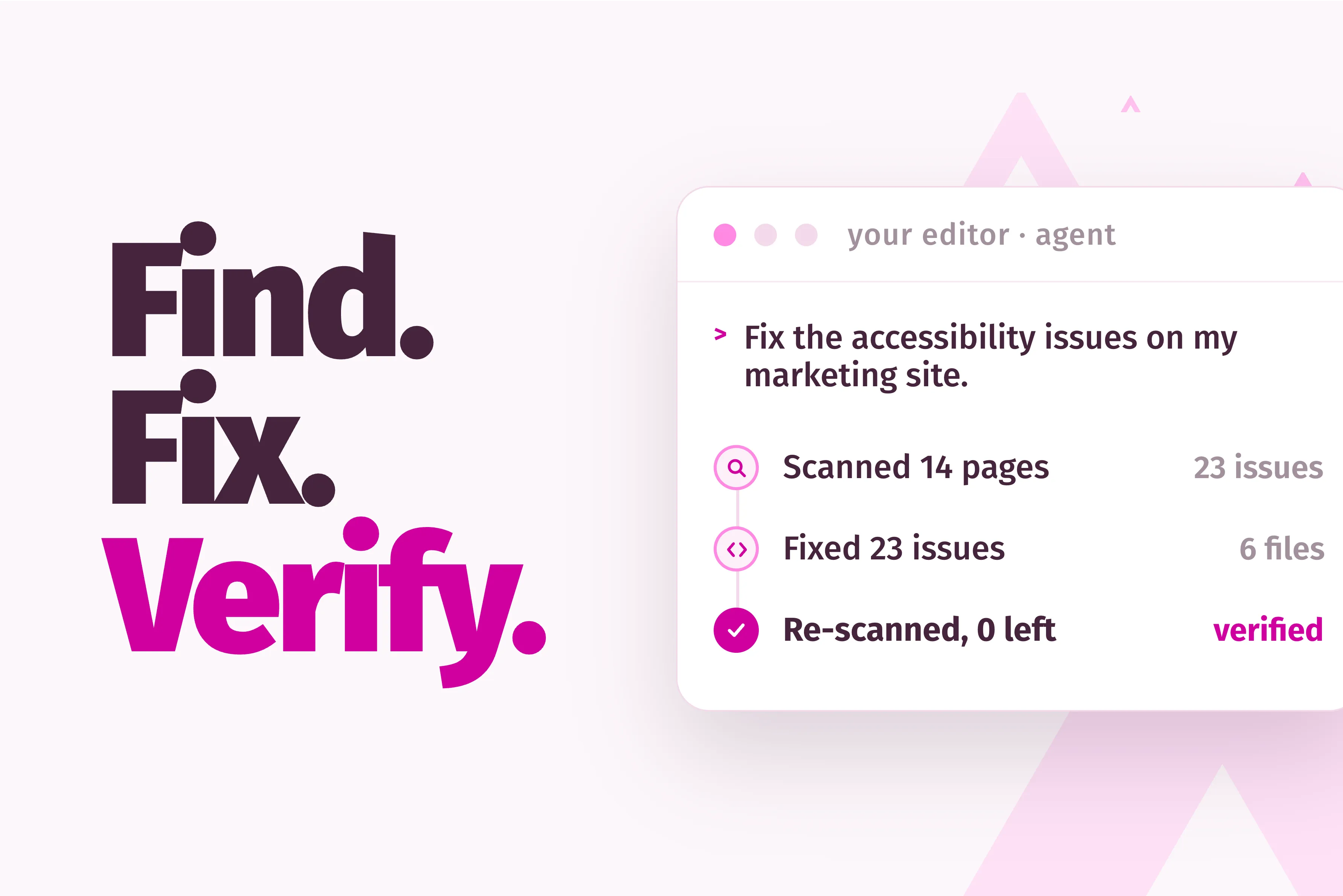
If you’re anything like me, you want the code you write to be as accessible as possible. Scanning and finding your accessibility issues with something like A11y Pulse is one thing. But finding the time and fixing them is another beast altogether! There is just no way around it, fixing accessibility issues that are spread all over your code base is time-consuming work. Until now, that is! I’m super proud to announce our MCP Server has sped up that process loads.
Let your coding agent do the grunt work
Here’s a quick 101 of the pain point it solves and how it works:
Traditionally, you’d scan your site with a tool like A11y Pulse, look at the results, and track down each issue in your source code individually. You’d then look at the suggested fixes from A11y Pulse and apply the appropriate one. You’d then move onto the next issue. If you’ve got a bunch of issues, that really takes up a lot of time. The thing is that it’s the menial grunt work that AI is great at doing. It’s just your AI coding agent, like Claude Code, doesn’t have the context to know where the issues are or what the fix is. That’s exactly what our MCP server does. It connects your coding agent to your A11y Pulse accessibility data. Your agent already knows your code base, so it reads the issues from A11y Pulse, dives into the source code, applies the recommended fixes from A11y Pulse, and then preps a commit for your review. The combo of A11y Pulse via the MCP server and your coding agent have just taken on the grunt work you were dreading.
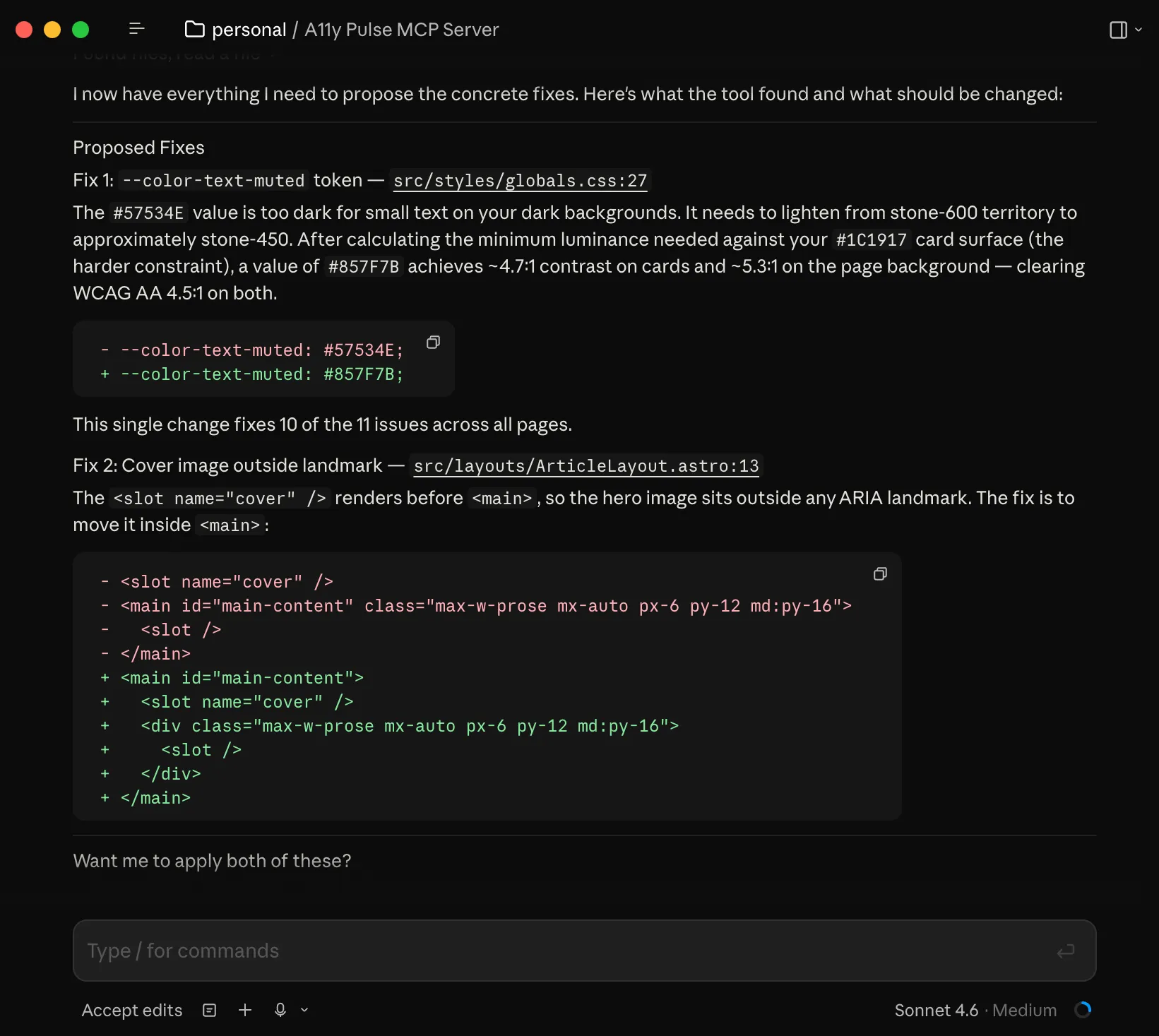
Now it can set up sites and run scans too
Today, we gave that MCP server even more power. Now, your coding agent can create sites in A11y Pulse, update the pages being scanned, and trigger scans on demand. Your coding agent is now your accessibility testing and fixing partner! Between you, you’ll be unstoppable and, hopefully, producing more accessible code!
Getting started
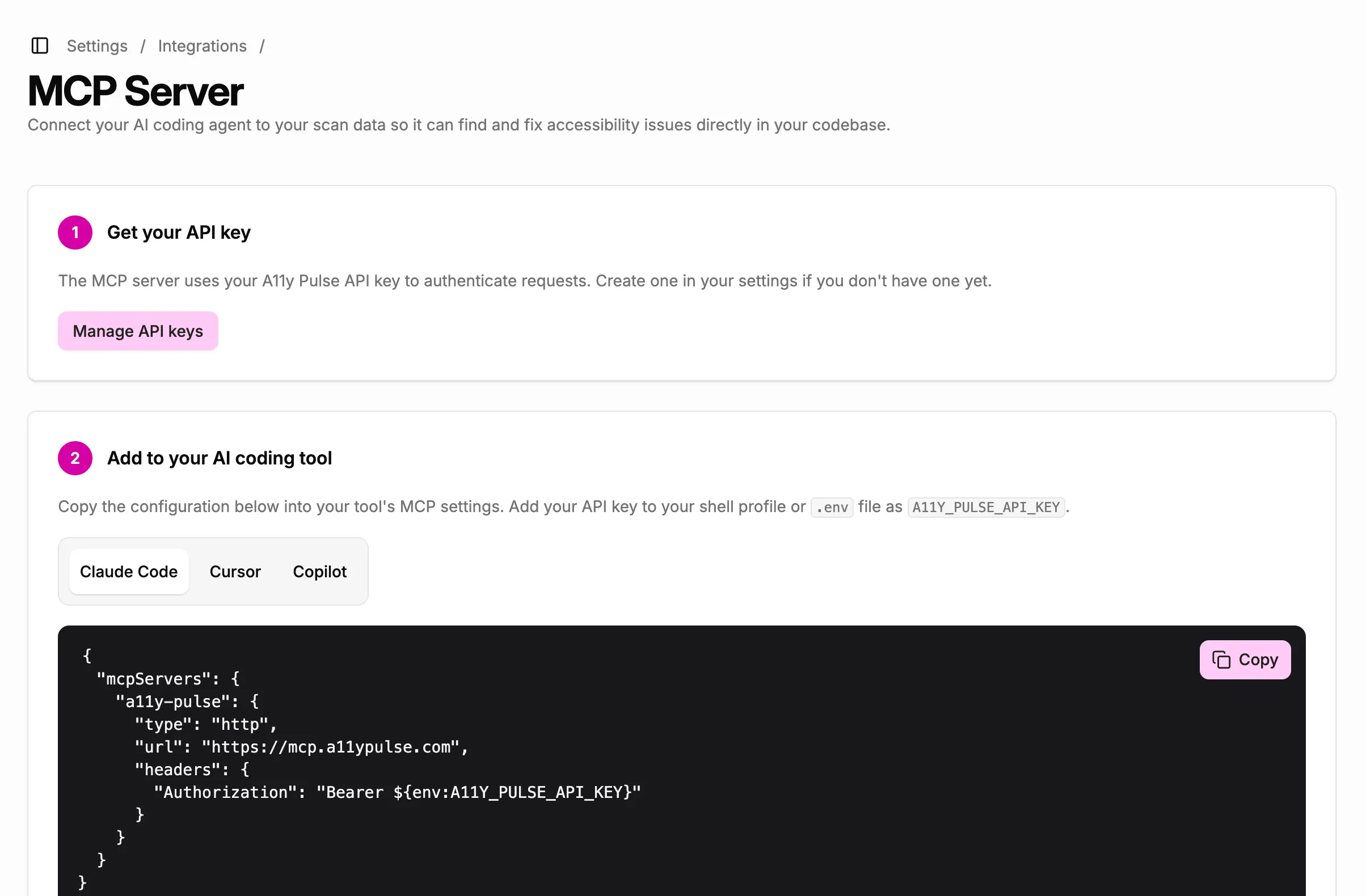
The MCP server is hosted at mcp.a11ypulse.com, so there’s nothing to install. Grab an API key and copy the config snippet for your tool from Settings → Integrations → MCP Server. It works with Claude Code, Cursor, and GitHub Copilot, and setup takes a couple of minutes. The MCP server docs walk through every tool and some prompts to get you going.
Not using A11y Pulse yet? Sign up for a free trial and see how easy it is to bring continuous accessibility testing into your team's workflow.
Questions? We would love to hear from you. Drop us a line at [email protected].