New! Two-factor authentication for your A11y Pulse account

Two-factor authentication has been one of our most requested features, and it is available today on every A11y Pulse account.
Your account holds more than a list of scores. It holds the sites you monitor, your scan history, your API keys, and any script secrets you have stored. Until now a password was the only thing standing in front of all of it. From today you can add a second factor, and if you run a team you can require everyone else to do the same.
Turning it on for your account
Head to Profile and find the Two-factor authentication card, then choose Enable two-factor authentication.
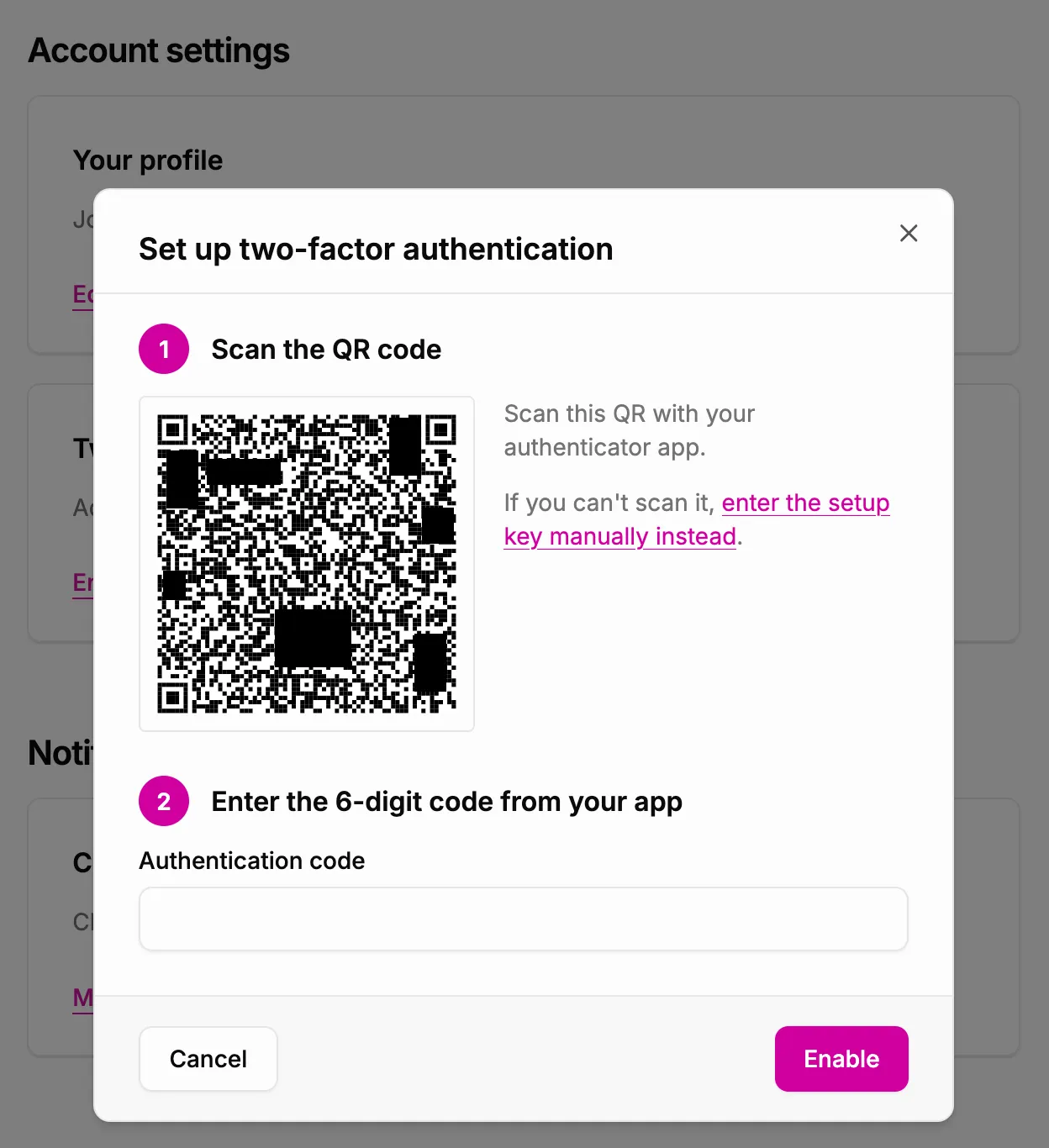
Scan the QR code with your authenticator app, enter the six-digit code it gives you, and that’s it. If you are on a device that can’t scan the code, you can reveal the setup key and type it in instead. From your next sign-in onwards, A11y Pulse will ask for a code after your password.
We support authenticator apps (TOTP) only. There is no SMS option, and we are not planning to add one: text messages are the weakest of the common second factors, and an authenticator app works everywhere without depending on your phone number.
Requiring it for your whole team
If you are a team admin or owner, go to Settings → General, find the Two-factor authentication card, and turn on Require two-factor authentication for all team members.
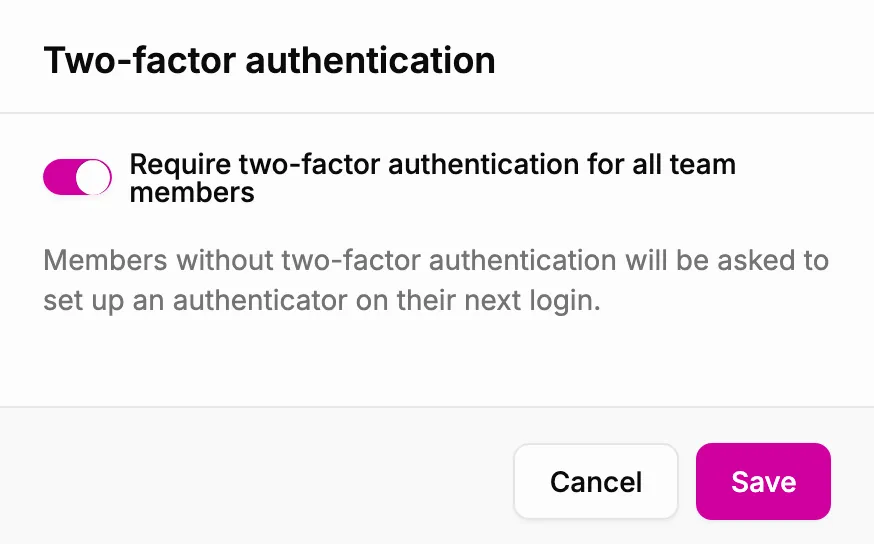
A few things worth knowing about how the requirement behaves:
- You need two-factor authentication on your own account first. We won’t let you lock yourself out of the team you have just secured.
- Nobody gets kicked out mid-session. Team members who are already signed in carry on working. They are asked to set up an authenticator the next time they sign in, or when they accept an invite.
- Members can’t turn it off while it is required. Once team members have enabled two-factor authentication, they cannot disable it while the requirement is in place.
- The requirement follows you across all of your teams. If you are a member of multiple teams and any of those teams requires two-factor authentication, your account will require it.
If you lose your authenticator
There are no backup codes yet, so if you lose access to your authenticator app you will need to email us at [email protected] and we will verify you and reset the factor by hand. Self-serve recovery is on our roadmap.
Scanning pages that are behind two-factor authentication
This is a different feature that is easy to confuse with the one above, so it is worth pointing at. If the pages you want to scan sit behind two-factor authentication, our scripting has a totp() function that generates codes during a scan. Register A11y Pulse as an extra authenticator on the account you scan with, store the setup key as a secret, and pass it to totp().
What’s next
Two-factor authentication was the first item on our security roadmap, and it won’t be the last. SSO and audit logs are the next two we want to get to. If there is something your security review keeps asking for, we would like to hear about it.
Not using A11y Pulse yet?Sign up for a free trial and see how easy it is to bring continuous accessibility testing into your team's workflow.
Questions? We would love to hear from you. Drop us a line at [email protected].