Mobile Device Emulation
A11y Pulse scans your site as desktop Chrome by default. If you would rather audit the experience your mobile visitors get, you can switch a site to mobile device emulation instead.
Enabling mobile emulation
Open your site settings and find the Device emulation options under Scan settings. Choose Mobile and save. From that point on, every scheduled and manual scan for the site runs at a 360 by 808 viewport using a Pixel 9 profile, which reports the scanner as Mobile Chrome on Android and renders the page as a touch device. Desktop remains the default and scans at a 1280 by 800 viewport with a standard Chrome identity.
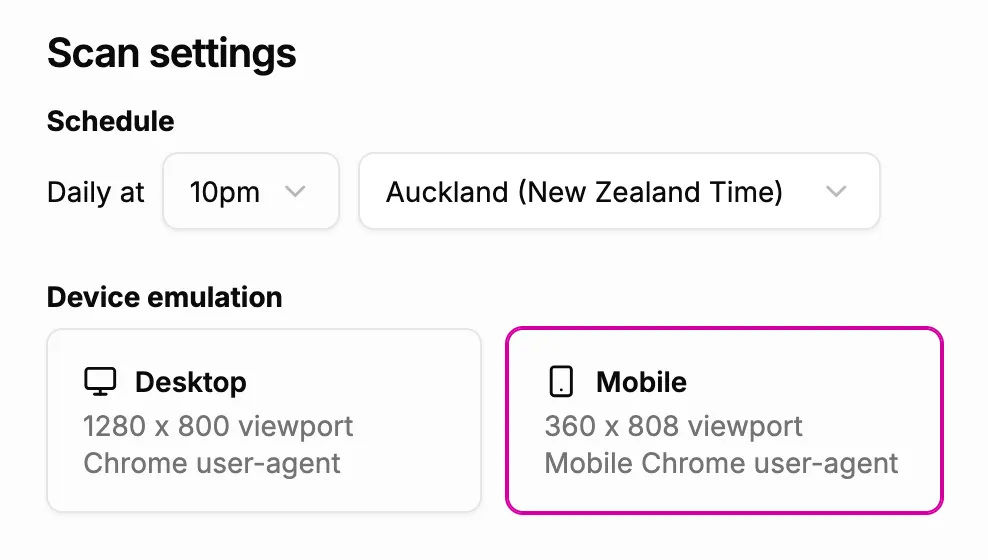
Each site uses a single device profile. A11y Pulse does not currently support scanning the same site as both mobile and desktop, so if you want to track both experiences you can add the site a second time and give each copy a different profile.
When results change
For most sites, switching to mobile emulation will not change which accessibility issues A11y Pulse finds. Modern sites usually serve the same HTML to every device and adapt the layout with responsive CSS, so the underlying content the audits inspect is the same whether it is viewed on a phone or a desktop.
The sites that should expect different results are the ones that serve genuinely different mobile content, such as a separate mobile site, markup that changes based on the requesting device, or elements that are shown or hidden depending on the device. In those cases the mobile scan audits the mobile content, which can surface different issues from the desktop version.