Microsoft Teams Integration
A11y Pulse posts accessibility alerts to a Microsoft Teams channel using a webhook URL that you generate from inside Teams.
This page covers:
- Setting up a Microsoft Teams integration
- Adding the integration as an alert recipient
- Removing an integration
- Troubleshooting
Setting up a Microsoft Teams integration
The setup happens partly in Teams and partly in A11y Pulse. The Teams half generates a webhook URL. The A11y Pulse half stores it and pairs it with the sites whose alerts you want to receive.
1. Generate the webhook URL in Teams
- In Microsoft Teams, open the channel where you want to receive alerts.
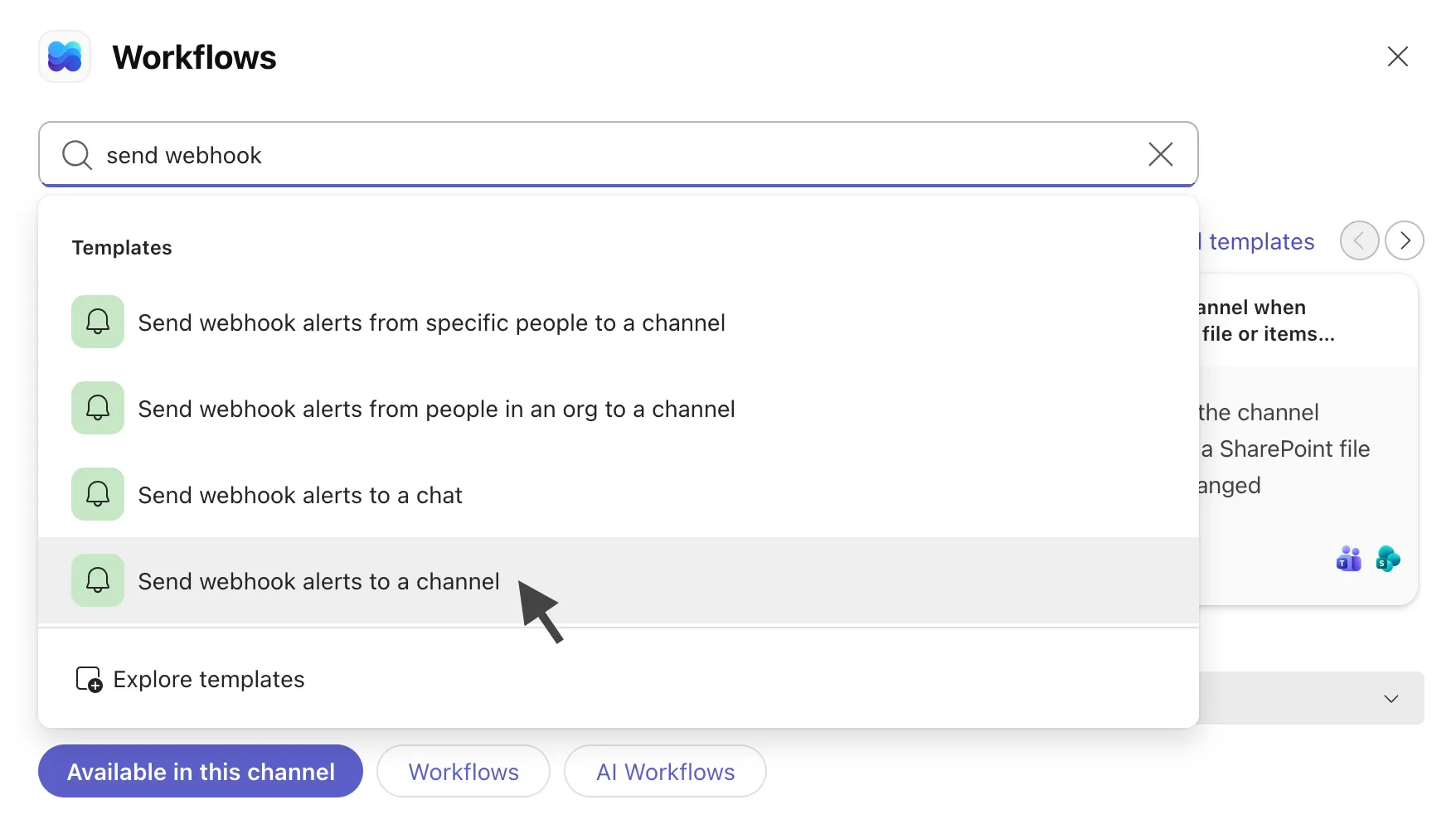
- Click the ⋯ More channel options button, then select Workflows.
- Search for the template called “Send webhook alerts to a channel” and select it.
- Confirm the team and channel, then click Save.
- Click Copy webhook link to copy the webhook URL.
For more detail, see Microsoft’s official guide: Create a webhook workflow from scratch.
2. Connect it in A11y Pulse
- In A11y Pulse, navigate to Settings, Integrations, Microsoft Teams.
- Paste the webhook URL into the Webhook URL field.
- Give the connection a label that will help you recognise it later (for example, “Engineering” or “#alerts”).
- Click Connect.
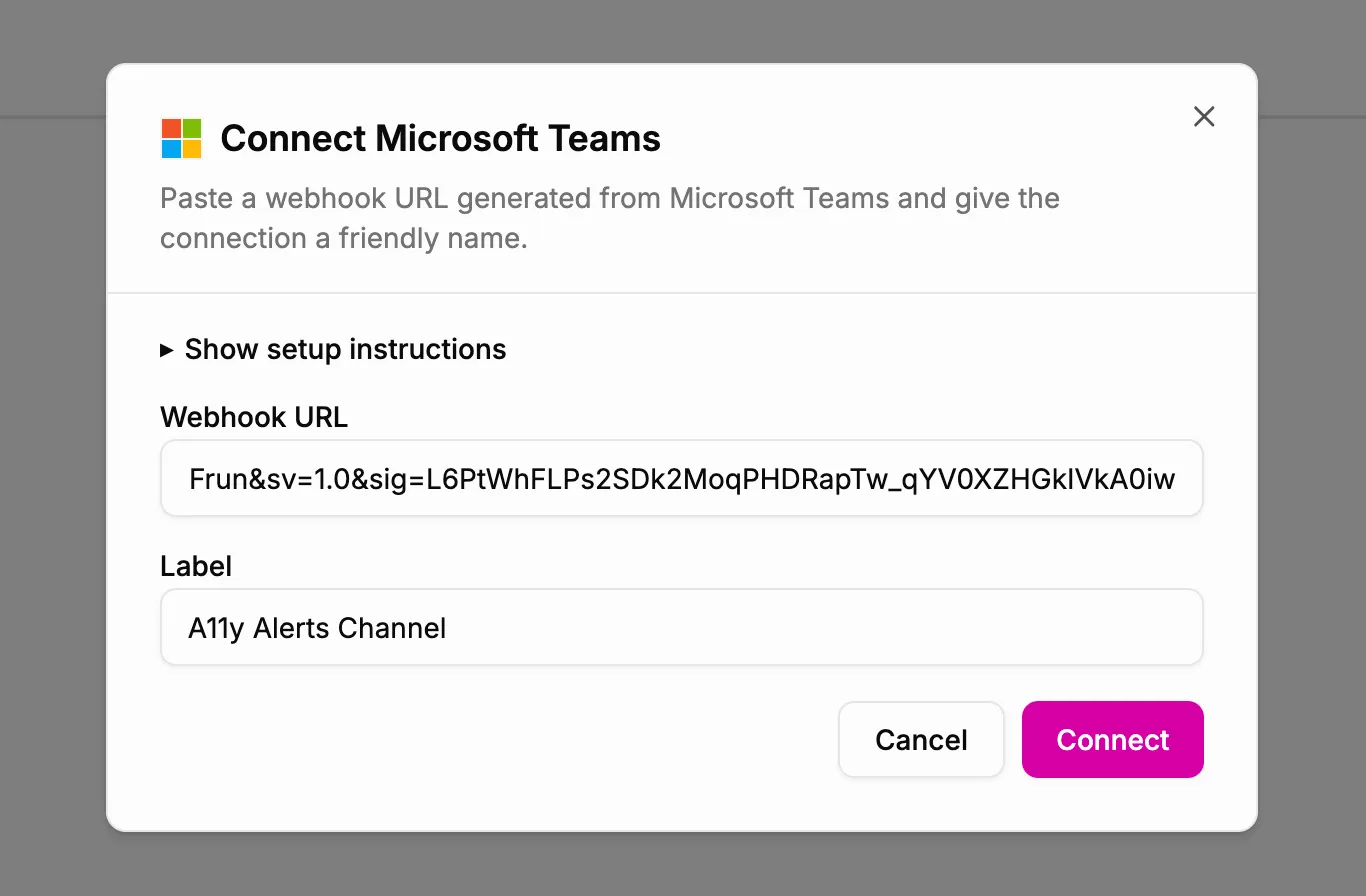
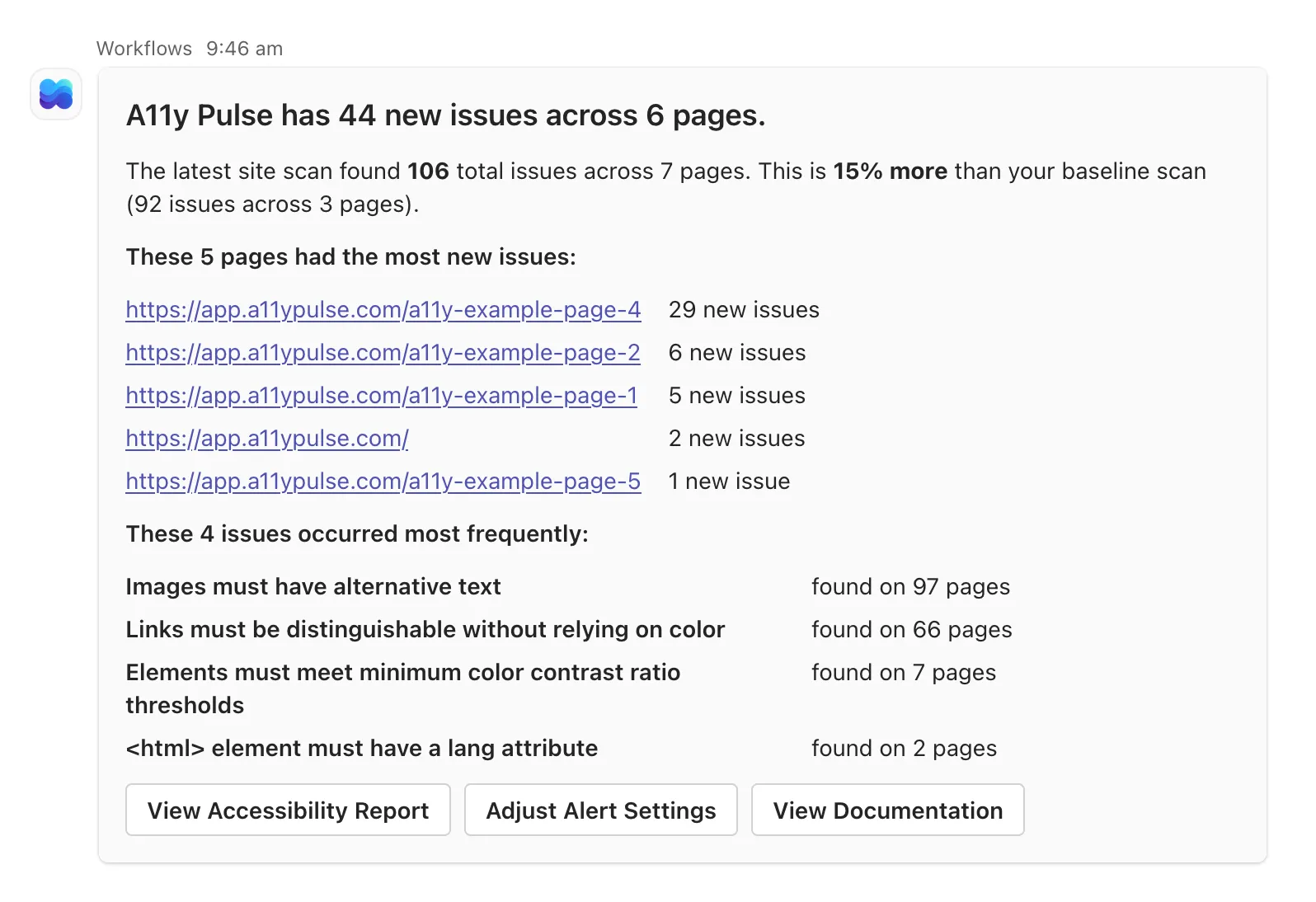
The connection appears in the integrations list. Click Test Integration to send a sample Adaptive Card to your channel. The first message can take up to thirty seconds because Microsoft’s workflow service may need to spin up.
Adding the integration as an alert recipient
A connection only sends alerts for sites that have it added as a recipient. On any site’s settings page, find the Alert Settings section, add the Microsoft Teams integration under Alert Recipients, and save. See Alerting for details about thresholds and frequency.
Removing an integration
In A11y Pulse, go to Settings, Integrations, Microsoft Teams and click Delete Integration on the connection you want to remove. A11y Pulse stops sending alerts to that webhook immediately.
To fully remove the connection on the Microsoft side, also delete the workflow from inside Teams. Until you do, the workflow URL keeps existing and could be used by any service that has it.
Related documentation
- Accessibility AlertsReceive accessibility alerts via email, Slack, or Microsoft Teams when your website's accessibility gets worse.
- Slack IntegrationInstall the A11y Pulse app in your Slack workspace to receive accessibility alerts.
- A11y Pulse BasicsLearn how to navigate A11y Pulse and how to get the most out of it.