Cloudflare Compatibility
If your site uses Cloudflare’s bot protection, Cloudflare may block the A11y Pulse scanner or show it a challenge page (such as “Verify you are human” or “Just a moment…”) instead of your content. When that happens, A11y Pulse checks the challenge page instead of your site, so your results won’t reflect your real pages.
Cloudflare compatibility fixes this. When you turn it on for a site, A11y Pulse scans that site with the Cloudflare-verified version of our scanner. Cloudflare recognizes it as a verified bot, so it can reach your pages without being challenged.
Contents:
- When to use Cloudflare compatibility
- How to enable Cloudflare compatibility
- If scans are still blocked
When to use Cloudflare compatibility
Turn on Cloudflare compatibility for a site if:
- Your site is behind Cloudflare, and Bot Fight Mode, Super Bot Fight Mode, or Bot Management is turned on
- Your scan screenshots show a Cloudflare challenge page instead of your site
- Your scans fail with an error saying the scanner was blocked by a bot-protection challenge
Cloudflare compatibility is available on every plan, and you can turn it on or off separately for each site.
How to enable Cloudflare compatibility
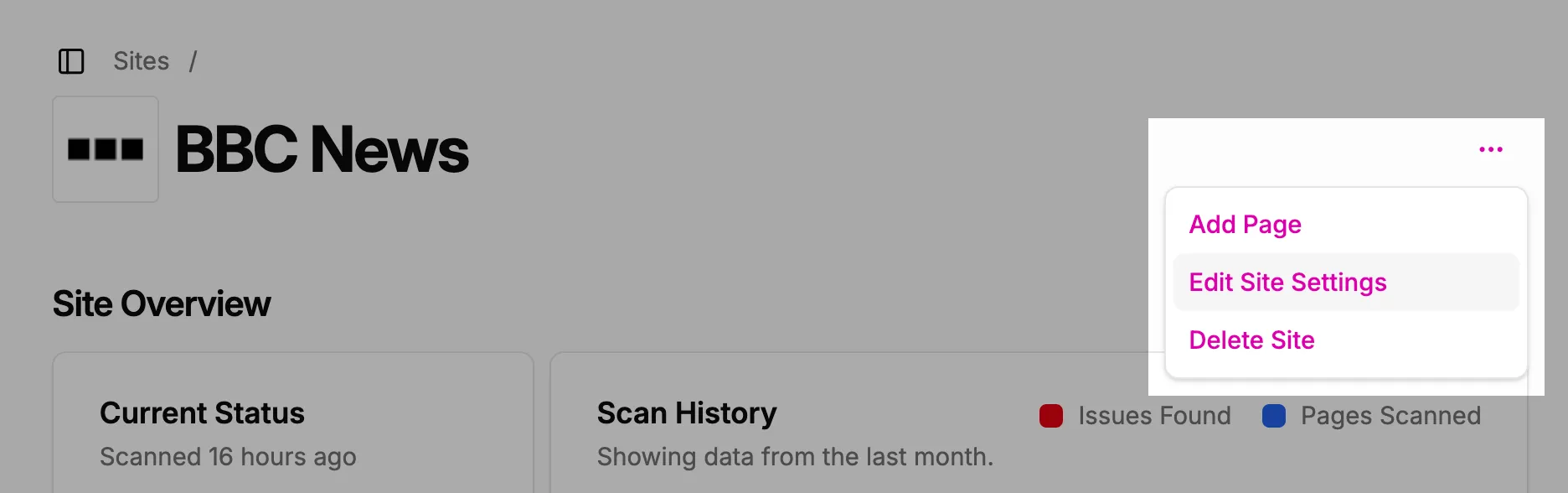
- Go to the Sites page and click the Edit Site Settings button for the site you want to change.
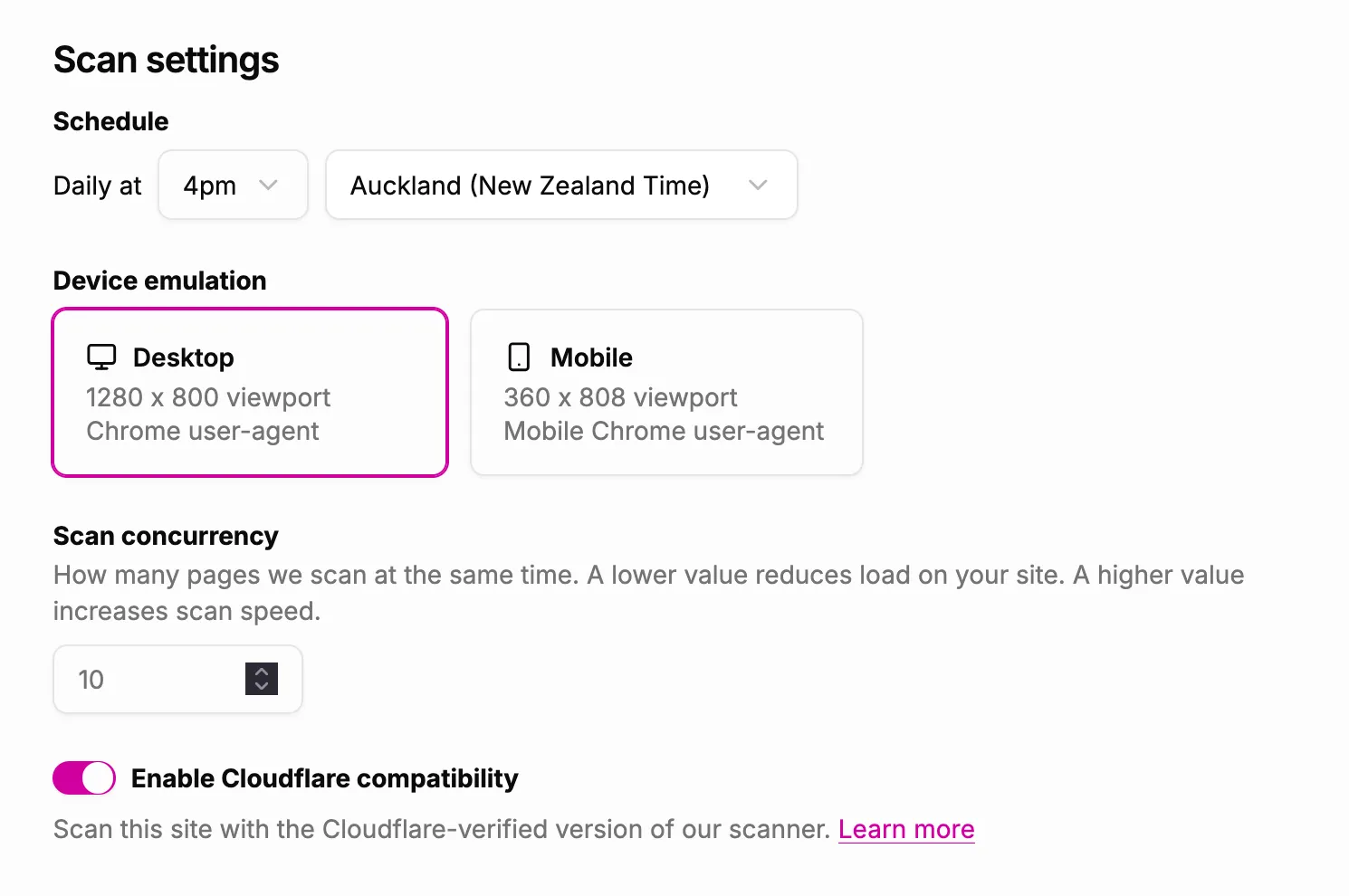
- Scroll down to the Scan settings section.
- Turn on the Enable Cloudflare compatibility switch.
- Click Save changes.
The setting applies from the next scan onwards. To check it straight away, start a new scan from the site page.
If scans are still blocked
Cloudflare lets verified bots through by default. If your scans are still blocked after you turn on Cloudflare compatibility, check your Cloudflare dashboard for settings that block verified bots:
- Security rules: a custom rule or rate limiting rule that blocks or challenges all bots, including verified ones
- Bot settings: Super Bot Fight Mode set to block verified bots
If you can’t find the cause, email [email protected] with the site’s address, and we’ll help you work it out.
Related documentation
- About Our ScannerWhat the A11y Pulse scanner is, what it does on your site, and how to identify and allow its traffic.
- Static IP AddressUse A11y Pulse's static IP address to allowlist our scanner in your firewall or security settings.
- Troubleshoot Scanning ErrorsWhere to find more information about scanning errors.
- Scan FrequencyFind out how often A11y Pulse scans your website.